Collections, Whiteboards, and Top Tabs
FlexNote provides two independent navigation systems: the left sidebar organizes content for long-term access, while the top tab bar manages content that is currently open.
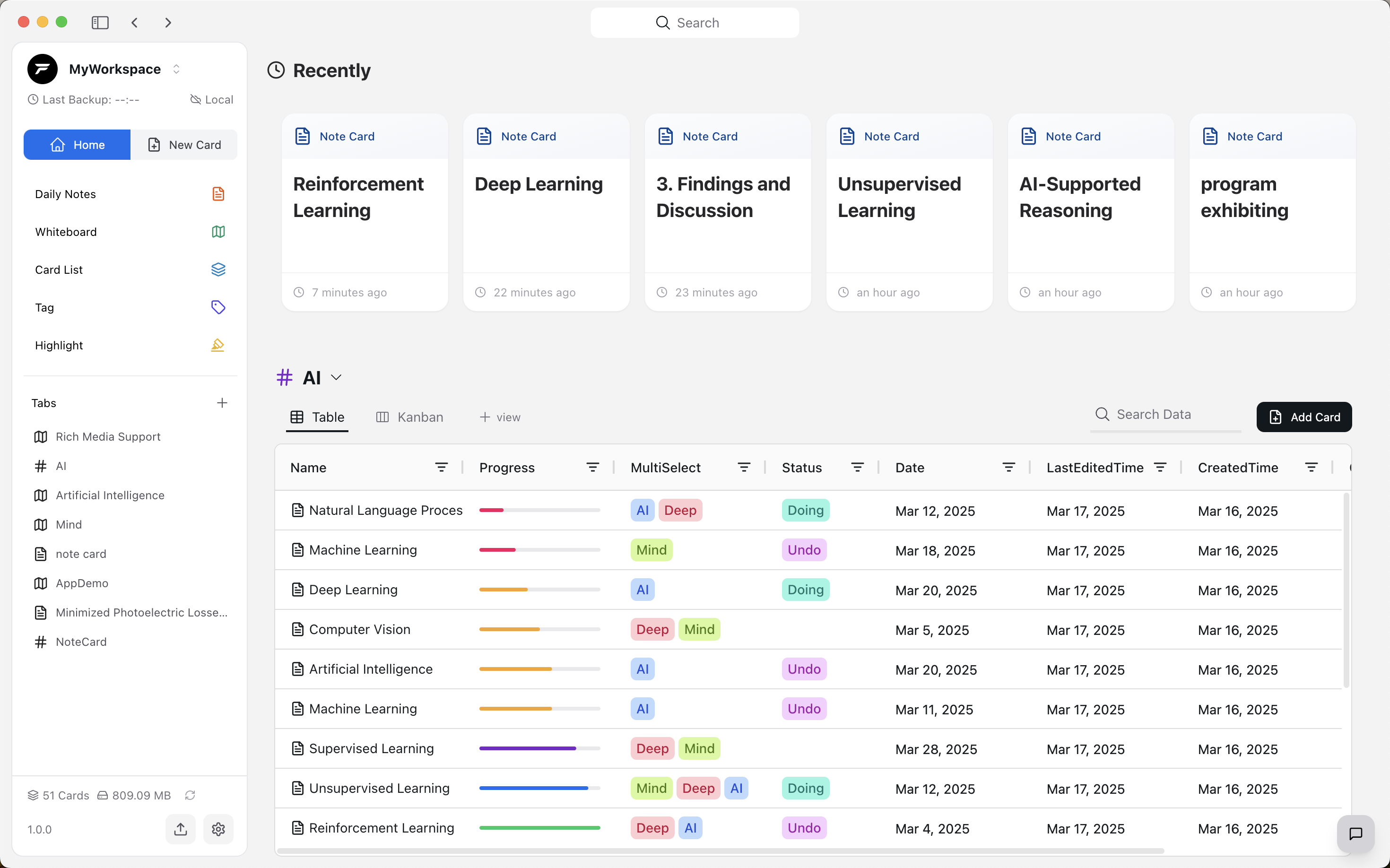
| Area | Primary purpose | Best suited for |
|---|---|---|
| Left sidebar | Collections and the whiteboard list | Persistent shortcuts, project structures, and all whiteboards |
| Top tab bar | Open content | Cards, whiteboards, PDFs, websites, and other items used in the current task |
Left Sidebar
The left sidebar can be switched between Collections and Whiteboards. FlexNote remembers the selected view for the next session.
Collections
Collections provide persistent shortcuts to frequently used content and support a structured folder hierarchy.
- Create folders to organize collected items by project, subject, or workflow stage.
- Use nested folders and expand or collapse them as needed.
- Drag items to change their order or move them between folders.
- A collected item is a shortcut to its source. Removing it from a collection does not delete the original card, whiteboard, or file.
Collections are suitable for project home pages, primary whiteboards, research materials, and cards that require ongoing access.
Whiteboard List
Switch to Whiteboards to browse existing whiteboards in the sidebar. Selecting a whiteboard opens it in the top tab bar.
Create, group, and fully manage whiteboards from the Whiteboards page. The sidebar list is designed primarily for quick browsing and access.
Top Tab Bar
The top tab bar follows a browser-style interaction model and retains content opened during the current workflow. Cards, whiteboards, PDFs, mind maps, websites, media files, journal entries, and tag pages can all appear as top tabs.
Open and Switch Content
- Select a tab to switch to its content.
- If the same source is already open, FlexNote activates the existing tab instead of creating a duplicate.
- Select the active tab again to open the content switcher, where another item can be searched for and loaded into that tab.
- The Home tab returns to the main workspace and remembers the most recently visited home section.
The add control on the right side of the tab bar can create cards and mind maps, import PDFs or media, and search recent content.
Arrange and Close Tabs
- Drag tabs to rearrange them.
- Closing a tab removes it from the current tab bar only. It does not delete the source or remove it from a collection.
- When the active tab is closed, FlexNote selects an adjacent tab. If no content tabs remain, it returns to Home.
- Scroll horizontally to navigate the tab bar when many tabs are open.
Tab Menu
Right-click a tab to access the following commands:
- Open in New Window: detach the current content for side-by-side reading or use on another display.
- Close Other Tabs: keep only the selected tab.
- Close Tabs to the Right: close every tab to the right of the selected tab.
- Close Tab: close the selected tab.
Recommended Organization
Use collections as a stable content directory and top tabs as a temporary workspace for the current task. For example, maintain a project folder in Collections, then open the cards, whiteboards, and PDFs required for the current session in the top tab bar. Closing those tabs after the task does not change the collection structure or delete the original content.
🖼️ Image placeholder: Switching between Collections and Whiteboards, rearranging top tabs, and using the tab context menu.