Introduction
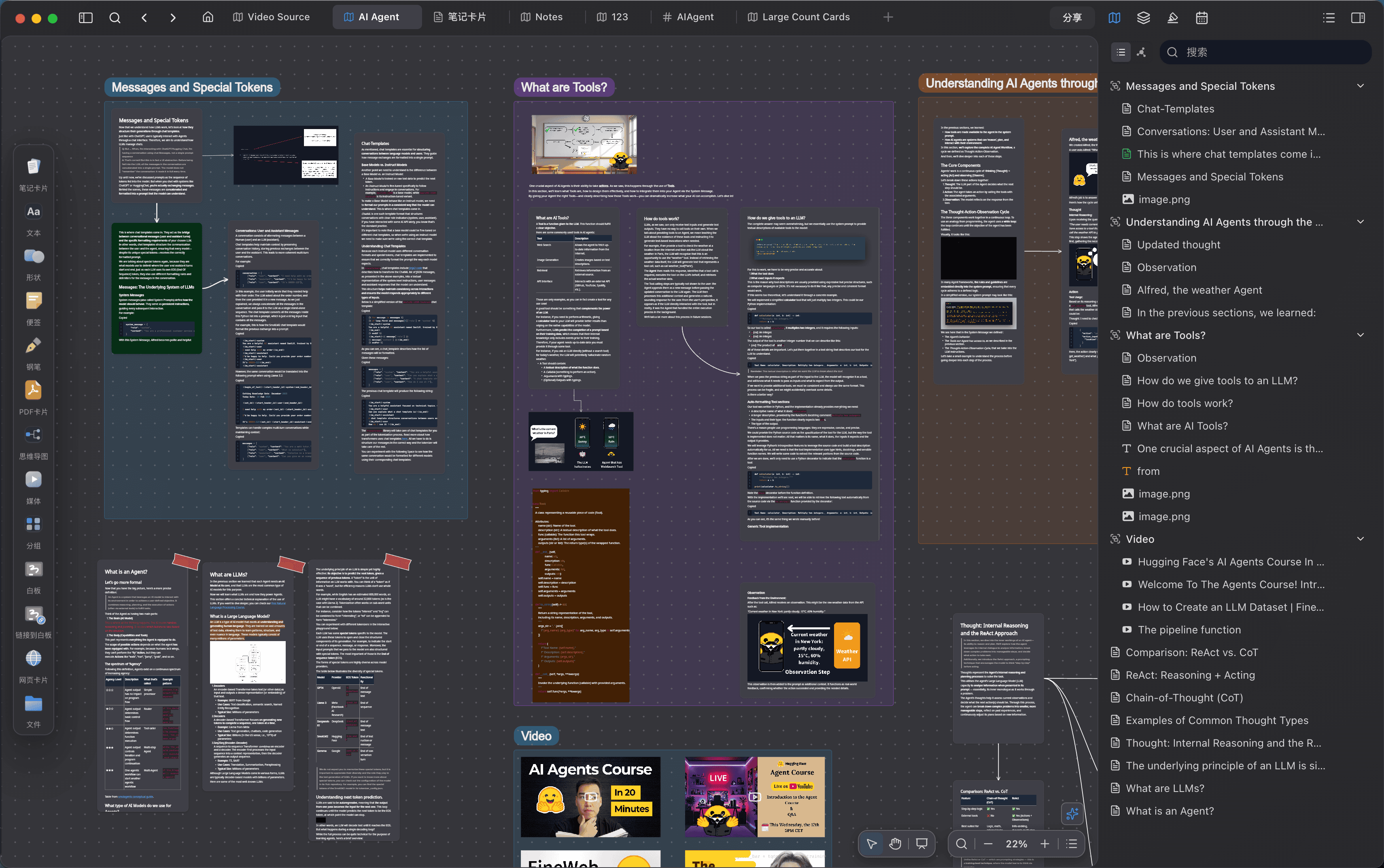
Flexnote is a local-first visual note-taking app. Notes, PDFs, videos, and web pages can each become a card. Arrange, group, and connect those cards on an infinite canvas to show the structure of a topic.
What it is for
Flexnote fits study, research, and project work that needs side-by-side reading and long-term organization: literature, courses, project mapping, and keeping ideas. Mind maps, the tag database, and knowledge-base AI all use the same cards. Highlight and annotate a PDF on the canvas. Mark a video at a timestamp.
Notes and files stay on the device by default, and editing continues offline. To use the same library on more than one device, connect Baidu Netdisk, OneDrive, S3, or WebDAV. A whiteboard can be published as a link that visitors open without installing the app.
Desktop builds support Windows 10 or later (64-bit) and macOS 11 or later. An Android app is available. iOS is in development. The website currently views published whiteboards. Installers are on the download page (opens in a new tab).
Basic objects
Work in Flexnote centers on four objects.
- Cards. A card is a piece of content that can be opened on its own: a note, image, audio or video, PDF, web page, mind map, or file. The same card can sit on more than one whiteboard. After the body changes, every reference shows the latest content.
- Whiteboards. A whiteboard is an infinite canvas for arranging, nesting, and connecting cards, and for showing that structure as a mind map. The canvas stores references. The body still belongs to the card library.
- Tags. Tags add categories and custom properties to cards, with table, list, and kanban views for filtering by status or topic.
- AI. Knowledge-base AI answers from indexed notes, whiteboards, PDFs, and media, and cites its sources. After confirmation, it can also write a conclusion into a card, a daily note, or a whiteboard. Model calls use an API key you configure.
Highlights, daily notes, and todos are built on these objects. A highlight lifts a passage from a PDF or video into a card and can return to the page or timestamp. Daily notes organize a day. Todos collect task lists from notes.
Interface at a glance
The left sidebar is the set of lasting entries.
| Entry | Role |
|---|---|
| Workspace | Switch between separate note spaces |
| Daily Notes | Record and review each day on a timeline |
| Whiteboard | Open the infinite canvas |
| Card List | Browse every card, and filter by type, tag, and whiteboard |
| Tag | Manage tags, properties, and table, kanban, and list views |
| Highlight | Review annotations taken from PDFs and videos |
| Todo | See tasks from notes |
| Collections | Pin frequent whiteboards and pages as navigation |
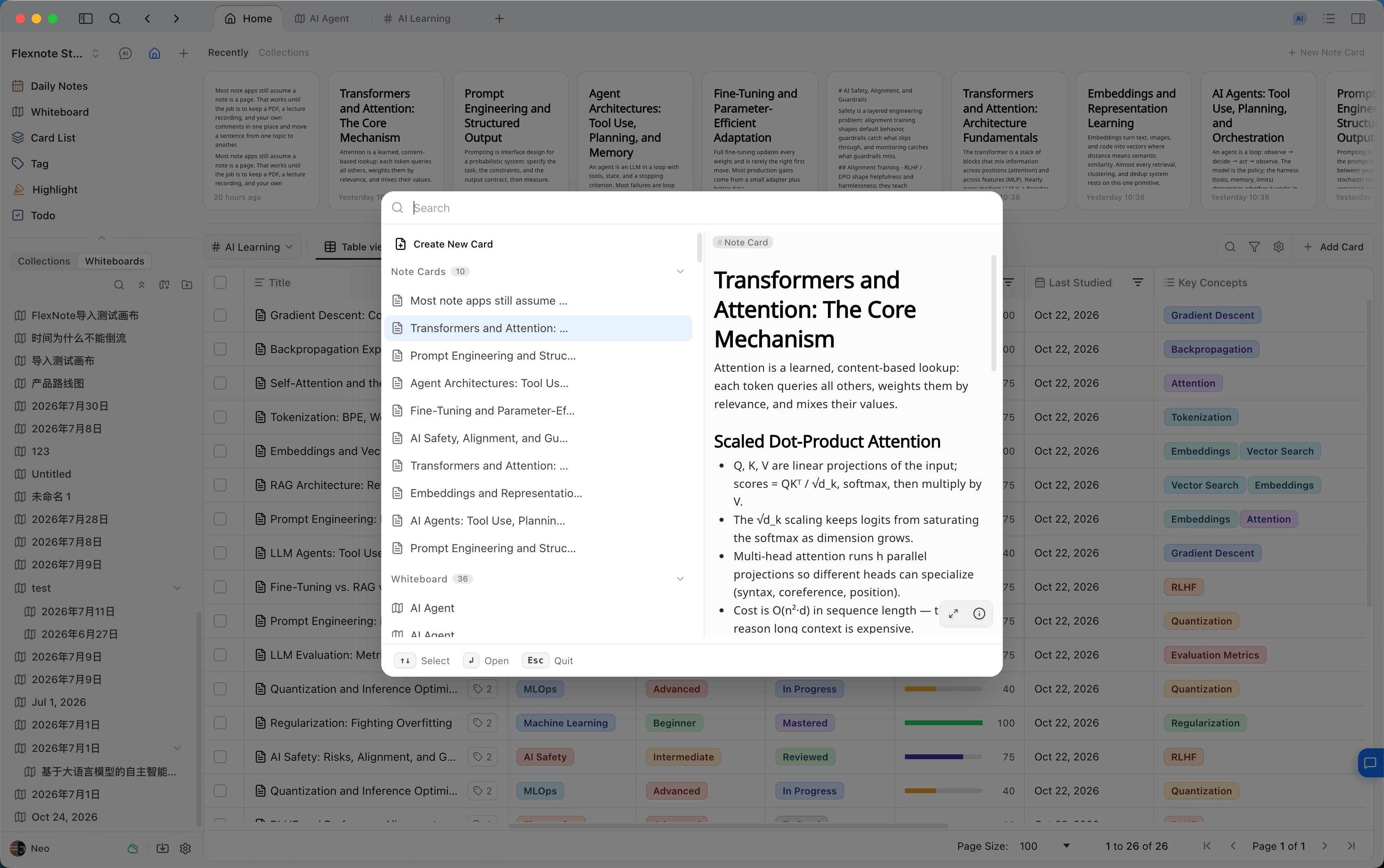
The top tab bar keeps recently opened whiteboards and notes, so you can move among sources. The home view shows note cards as a table by default, and can switch to kanban or list.
Cmd/Ctrl + O opens global search across cards and their text.
Continue reading
- Core elements: what cards, whiteboards, tags, and AI each do.
- Interface: how the sidebar and the top tab bar are organized.
- Use cases: pick a workflow for the task at hand.
The free plan includes 3 whiteboards and 100 cards on this device. Plans are listed on the pricing page (opens in a new tab).