Organize knowledge and projects
After the cards and whiteboards multiply, the structure still needs to stay clear. Use two layers of whiteboards. The first layer holds parent boards for projects, topics, life, and similar areas. The second layer holds a child board for each specific item, and most notes live on that second layer. While a second-layer board still has fewer than about a hundred cards, organize with groups and do not add a third layer yet. Keep knowledge and ideas on whiteboards. Archive records such as meeting notes and bibliography entries with tags and properties.
Build layers with whiteboards
A whiteboard builds structure for a topic you care about. It can also hold notes the way a folder does, and nest child whiteboards inside it. Create a whiteboard on the empty space of a parent board to add the next layer. Open Whiteboard in the left sidebar to see every board. The whiteboard list at the bottom of the sidebar indents nested boards under their parent.
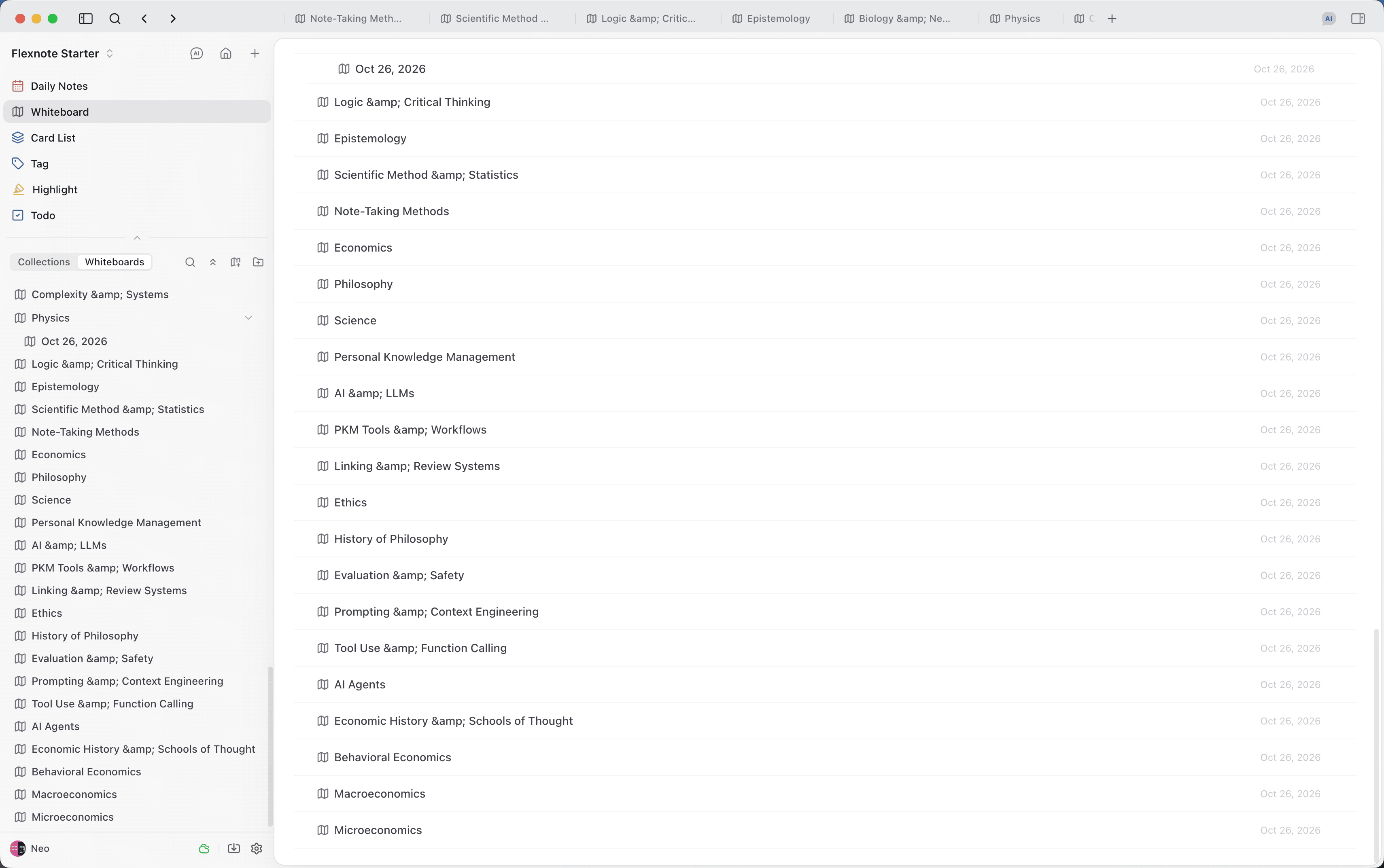
When starting, create three parent boards, then a child board for each item inside them:
- Projects. Important projects you are running or joining, one child board each.
- Topics. Subjects you are learning or researching, such as artificial intelligence, business cases, economics, or electromagnetism. Stronger material can go on the child board for that topic first.
- Life. Parts of personal life, such as finances, exercise, travel, films, and the yearly review.
If you often read, take courses, or follow particular authors and speakers, add more parent boards:
- Books. One child board per book, holding the reading notes for that book.
- Courses. One child board per course.
- Thinkers. One child board per author or speaker.
The same material can belong to both a book and a topic. If you plan to read it closely and later split and expand it, put it on the child board under Books. If you are skimming and only keeping material you can look up, put it on the child board under Topics. One card can appear on several whiteboards, and the body is stored once. Close-reading notes can therefore also be placed on a related topic board when you need them there.
Adjust these divisions to the work. Academic research can add a Papers parent board, with a child board for each paper being written. Running a company can add a Company parent board, then child boards for product research, user research, growth, hiring, and financial planning.
While a second-layer board still has fewer than about a hundred cards, two layers are enough. When objects crowd the canvas, marquee the related ones with the select tool and press Cmd/Ctrl + G, or create a group from the right-click menu. A group has a title. After you zoom out, the titles still show how each region is laid out.
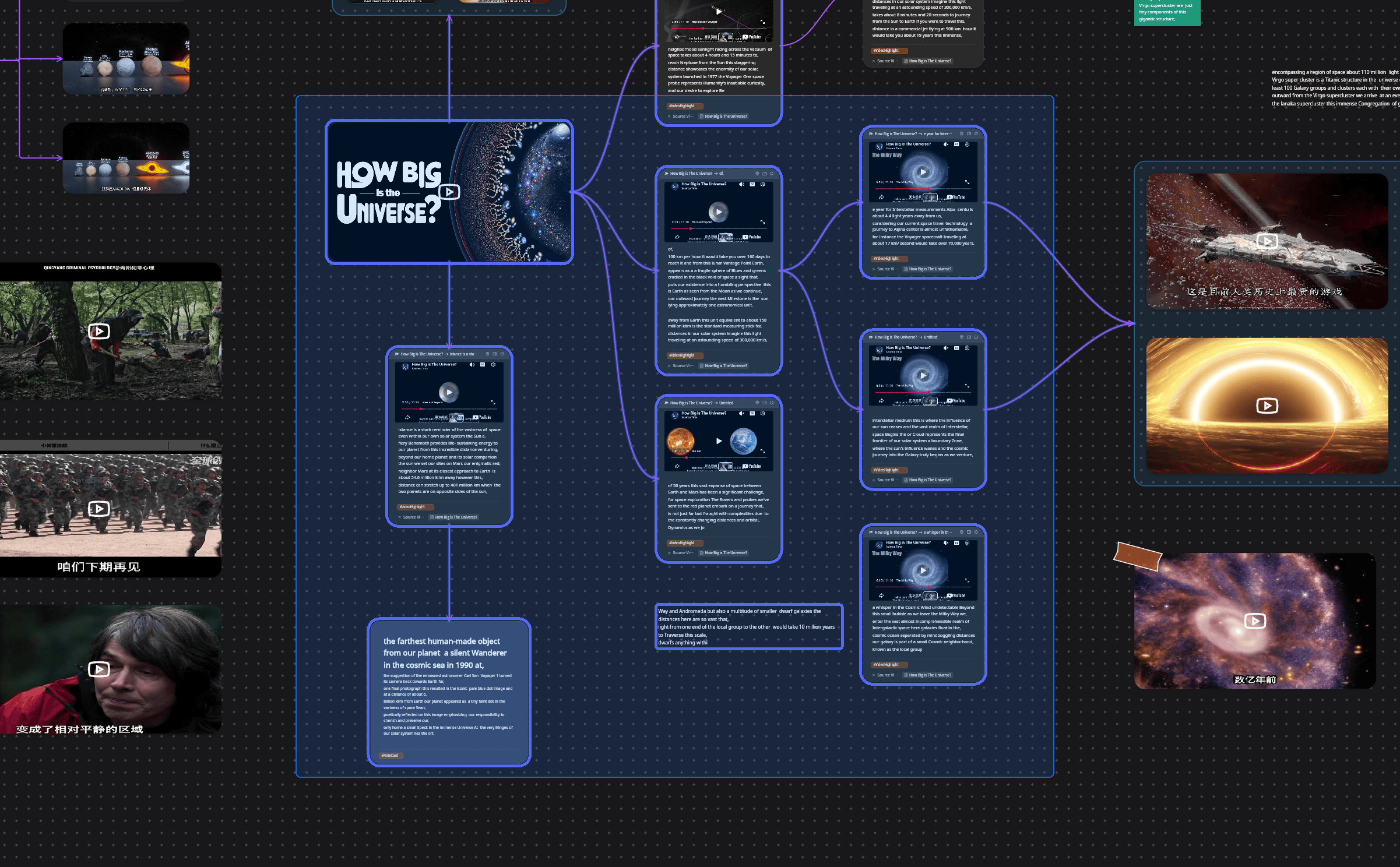
Once a second-layer board has more than about a hundred cards, and those cards are already grouped, consider moving the contents of some groups into a third-layer child board.
Pin frequent parent boards in Collections on the left sidebar. Removing an item from Collections only removes the entry. It does not delete the whiteboard.
Tags for archive records
Organize knowledge and ideas on whiteboards. Use tags when the same kind of record needs to become a filterable table.
Each tag is a table: a card with that tag is a row, and the properties defined on the tag are columns. If you often write meeting notes, create a Meeting notes tag and add properties such as date, participants, and meeting type. Switch the tag page to a table to see those fields together. When there are many cards, filter by property instead of opening them one by one.
Common property types are text, number, select, multi-select, date, checkbox, URL, progress, and relation. Cards under the same tag can also switch to a list or a kanban. All tags are under Tag in the left sidebar. On a card, choose an existing tag or create one.
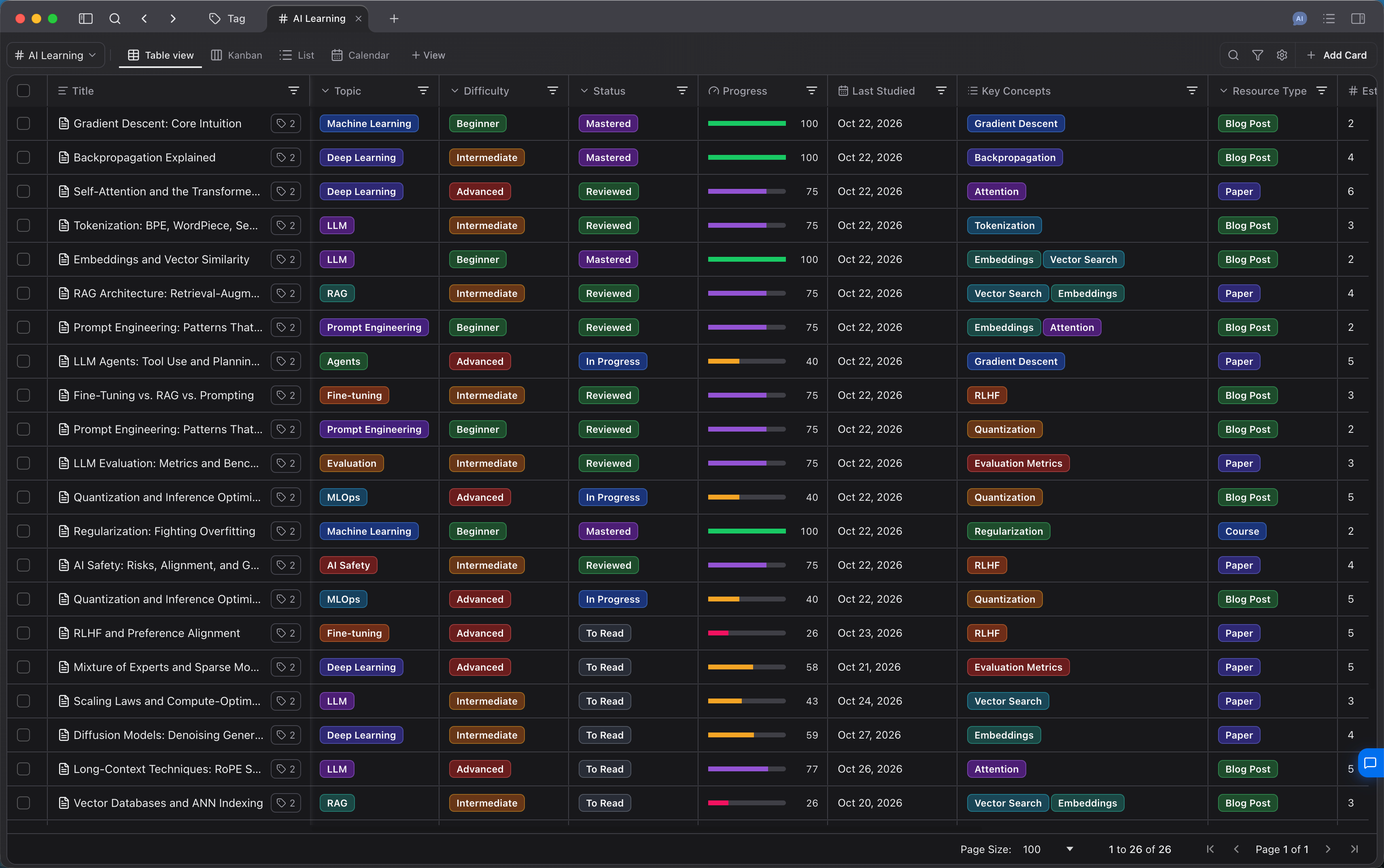
Reading notes, research notes, and similar knowledge and ideas stay on whiteboards. Large sets of archive records, such as meeting notes and bibliography entries, are managed with tags and properties.
Continue reading
Cards and tags as objects are in Core elements. Choosing a path by purpose is in Use cases. The research process is in Learn and research a topic. Drafts and publishing are in Writing and sharing.