Third-party cloud sync
The library is stored on the device by default. To continue the same library on another device, connect your own cloud storage on desktop: WebDAV, S3, OneDrive, or Baidu Netdisk. Data is written to a path you specify under that account.
Cloud sync is part of Pro. The free plan is local use on a single device. Plans are on the pricing page (opens in a new tab). Cloud sync moves the library among your own devices. To show a whiteboard to someone else, use a published link.
What gets synced
On upload, Flexnote transfers the local data directory incrementally by file content. Attachments whose content has not changed are skipped. In the local backup directory, only the fixed filename FlexNote-Backup-Cloud-Sync.zip is uploaded. Other dated local backups stay on the current device.
When another device downloads, the app downloads that backup first, then merges records into the local database by modification time.
- A record that exists in the cloud and not locally is added.
- When both sides have changes and the cloud copy is newer, the local record is updated.
- A record whose local modification time is later is kept, and the cloud version is not written. In the sync preview this is Local newer.
- Local content that would be deleted is written to Sync Conflict Archive first, and is removed from the library only after you confirm. It can still be restored afterward.
Interface preferences are not overwritten as a whole table. Local paths and window state stay on the current device. Reference templates are merged field by field, and an empty side is filled from the other. AI vector indexes and full-text indexes are not included in the backup. After changing devices, rebuild the index on that device.
Turn on cloud sync
Open Settings > Cloud Sync and enable Data Sync. While the switch is off, cloud service settings and the save prompt on quit are hidden.
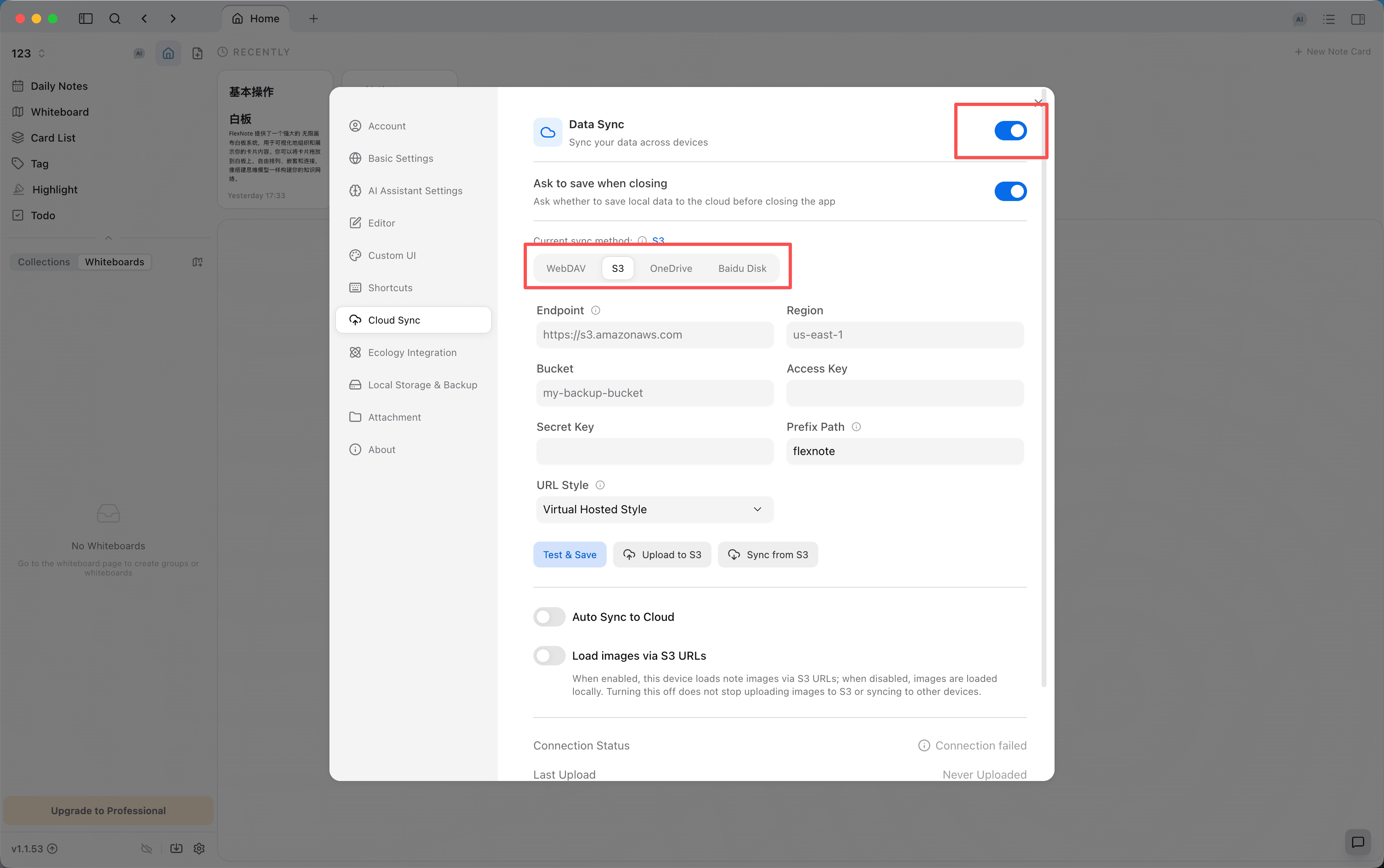
After it is on, Ask to save when closing appears and is on by default. When you close the window, the app asks whether to upload the current library to the selected cloud service. Skip quits immediately.
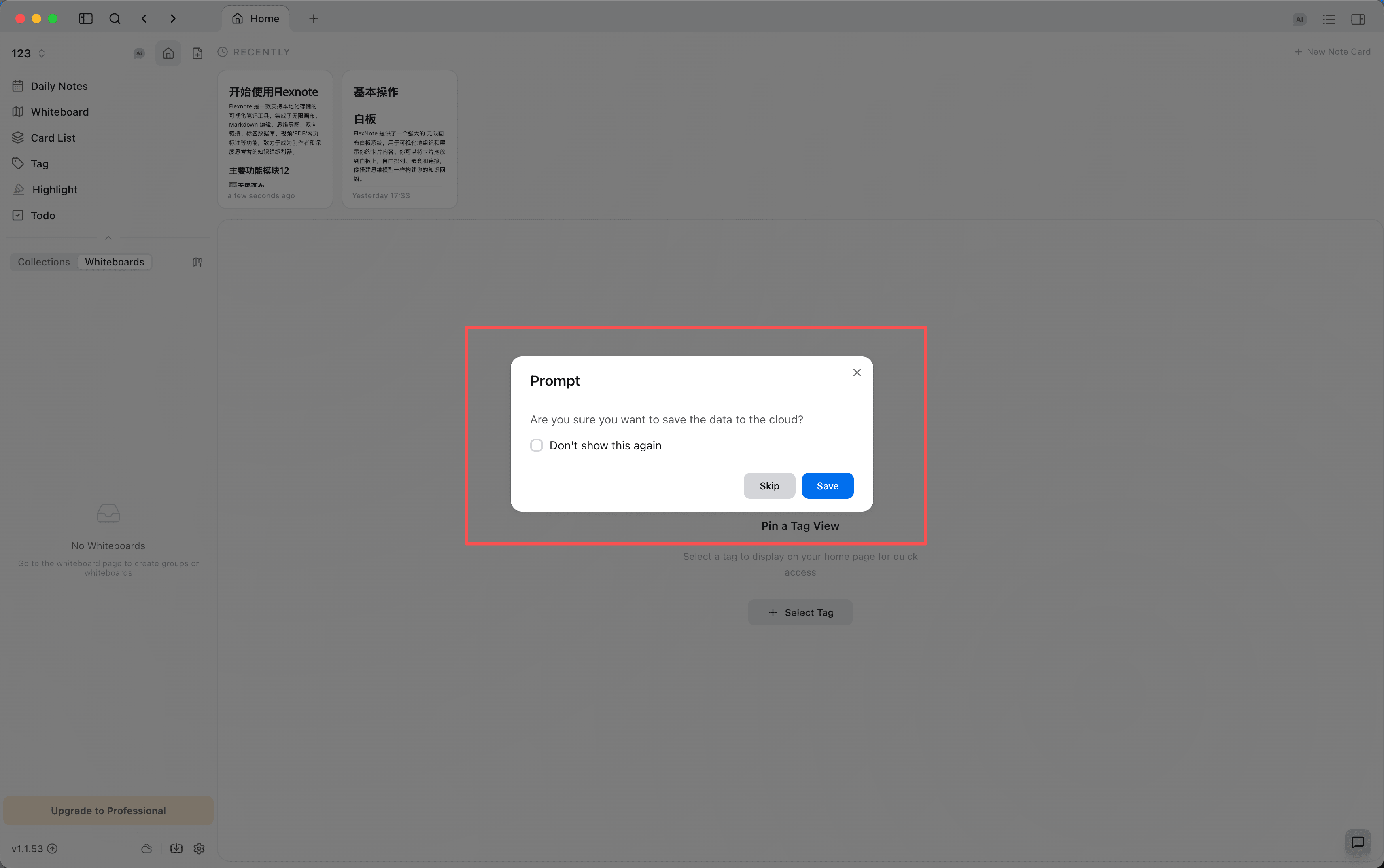
If you check Don't show this again and then save, later quits upload directly. If you check it and then skip, later quits neither ask nor upload. To restore the prompt, turn Ask to save when closing on again.
Choose a cloud service
The top of the page shows Current sync method. Manual upload and download from the cloud apply only to the selected tab. Auto sync can be turned on separately for each service. A check mark on a tab means the configuration is saved. A lightning icon means auto sync is on.
Each device should use the same cloud service and the same path. If several services upload automatically at once, the libraries can drift apart.
| Method | What you need | When it fits |
|---|---|---|
| WebDAV | Server URL, username, password, and a remote path that already exists | Jianguoyun, Nextcloud, ownCloud, or any standard WebDAV |
| S3 | Endpoint, Region, Bucket, Access Key, Secret Key, prefix | AWS S3, Tencent COS, Alibaba Cloud OSS, and compatible services |
| OneDrive | Browser authorization, optional storage path | You already use a Microsoft account |
| Baidu Netdisk | Browser authorization | The path is fixed under My Application Data and cannot be edited |
WebDAV
Fill in the server URL, username, password, and remote path. The remote path must already exist on the server. Flexnote does not create that directory. After filling it in, click Test & Save, then upload once the connection succeeds.
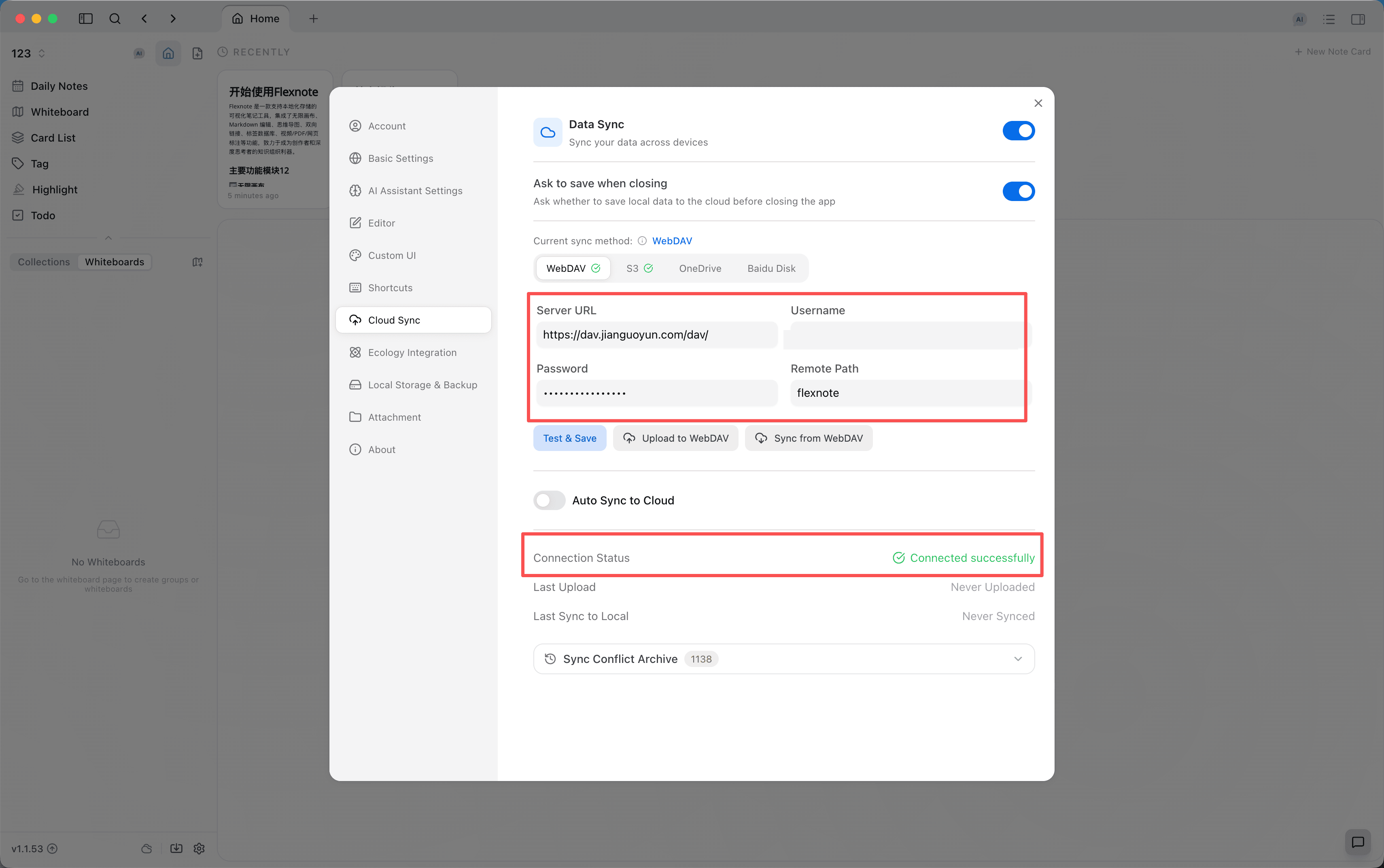
For Jianguoyun, the server URL is https://dav.jianguoyun.com/dav/ and the username is the registered email. The password must be an app password generated in the Jianguoyun web console under Account > Security options > Third-party app management. Create a folder in the drive first, for example flexnote, then enter that existing directory as the remote path.
Nextcloud and ownCloud use the same four fields. The server URL is the WebDAV root from the provider, and the password is the app password that provider requires.
S3
Endpoint must include http:// or https://, for example Tencent Cloud https://cos.ap-guangzhou.myqcloud.com. Fill in Region, Bucket, Access Key, and Secret Key from the matching console. Prefix is a directory prefix inside the bucket, for example flexnote-backup. The backup is stored under that prefix.
URL Style defaults to virtual hosted style. If the provider requires path access, switch to Path Style. Alibaba Cloud OSS uses virtual hosted style.
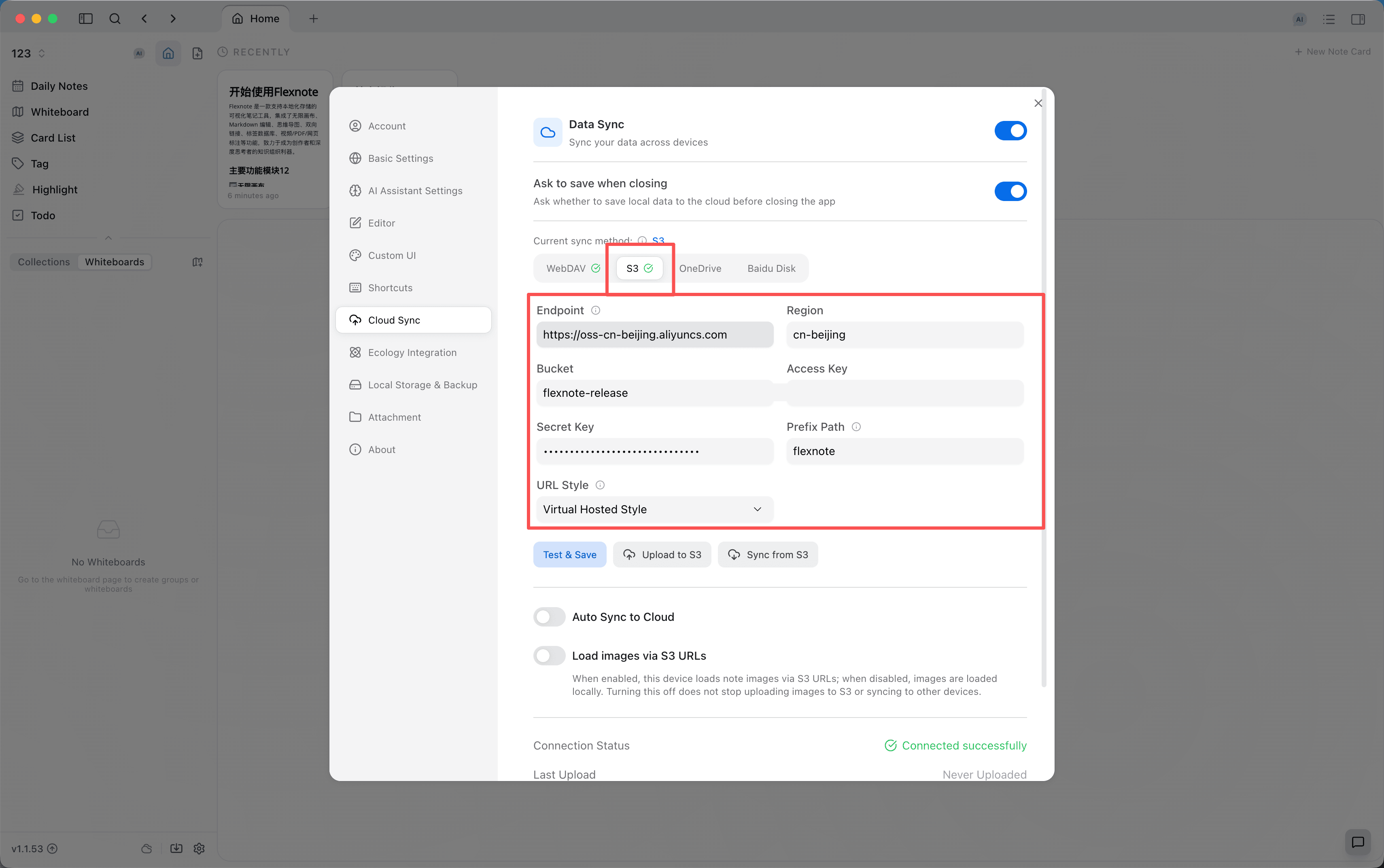
Load images via S3 URLs only decides whether this device displays note images from S3 addresses. When it is off, images still load from the local copy. Upload and sync to other devices are unaffected.
OneDrive
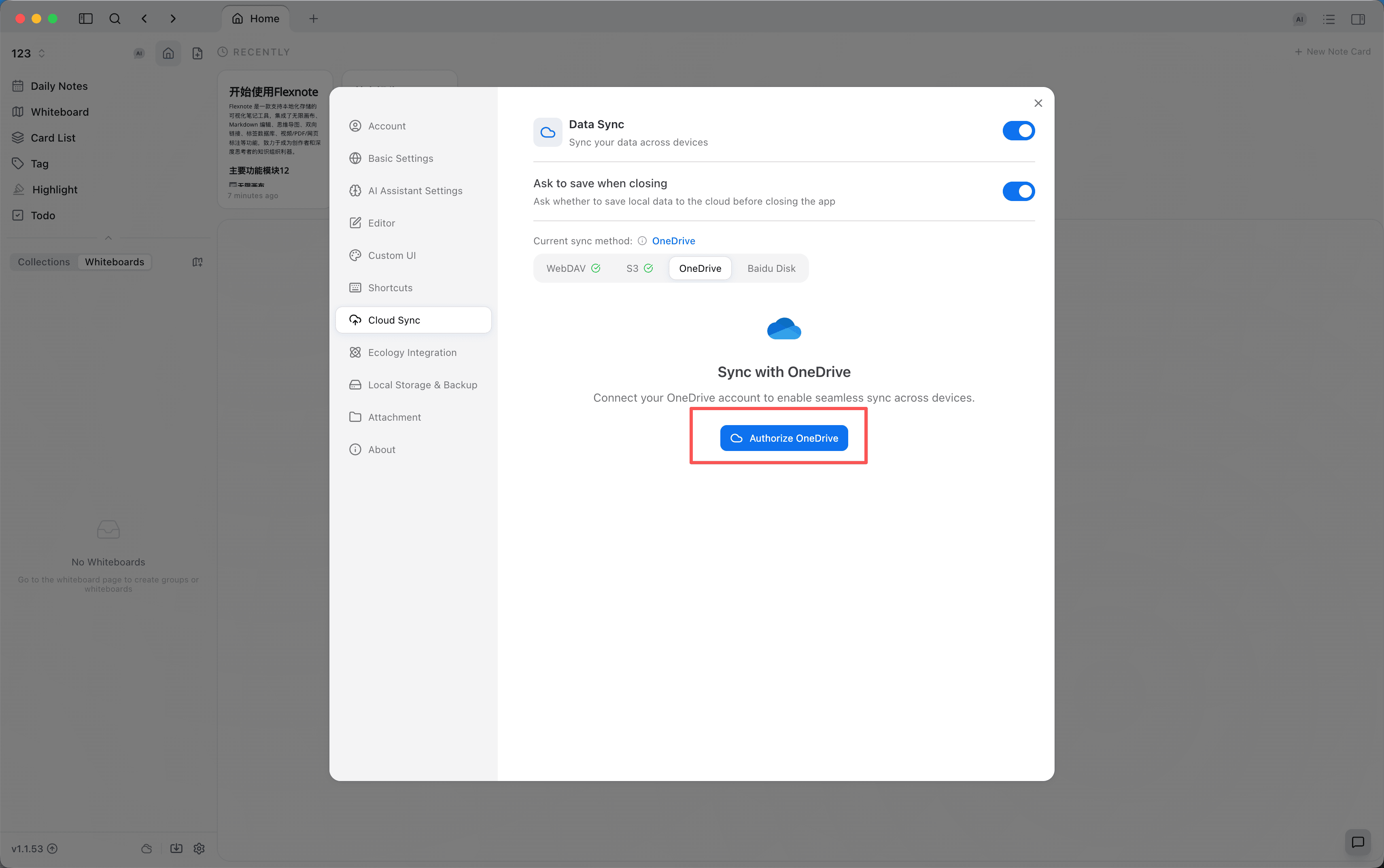
Click Authorize OneDrive and sign in to the Microsoft account in the browser. After authorization, Flexnote shows that it is connected. The storage path defaults to /flexnote and can be changed. Synced files are stored in that folder in OneDrive.
Baidu Netdisk
Click Authorize Baidu Disk. After the connection succeeds, the storage path is shown under My Application Data and cannot be changed. Baidu Netdisk requires third-party apps to store data there.
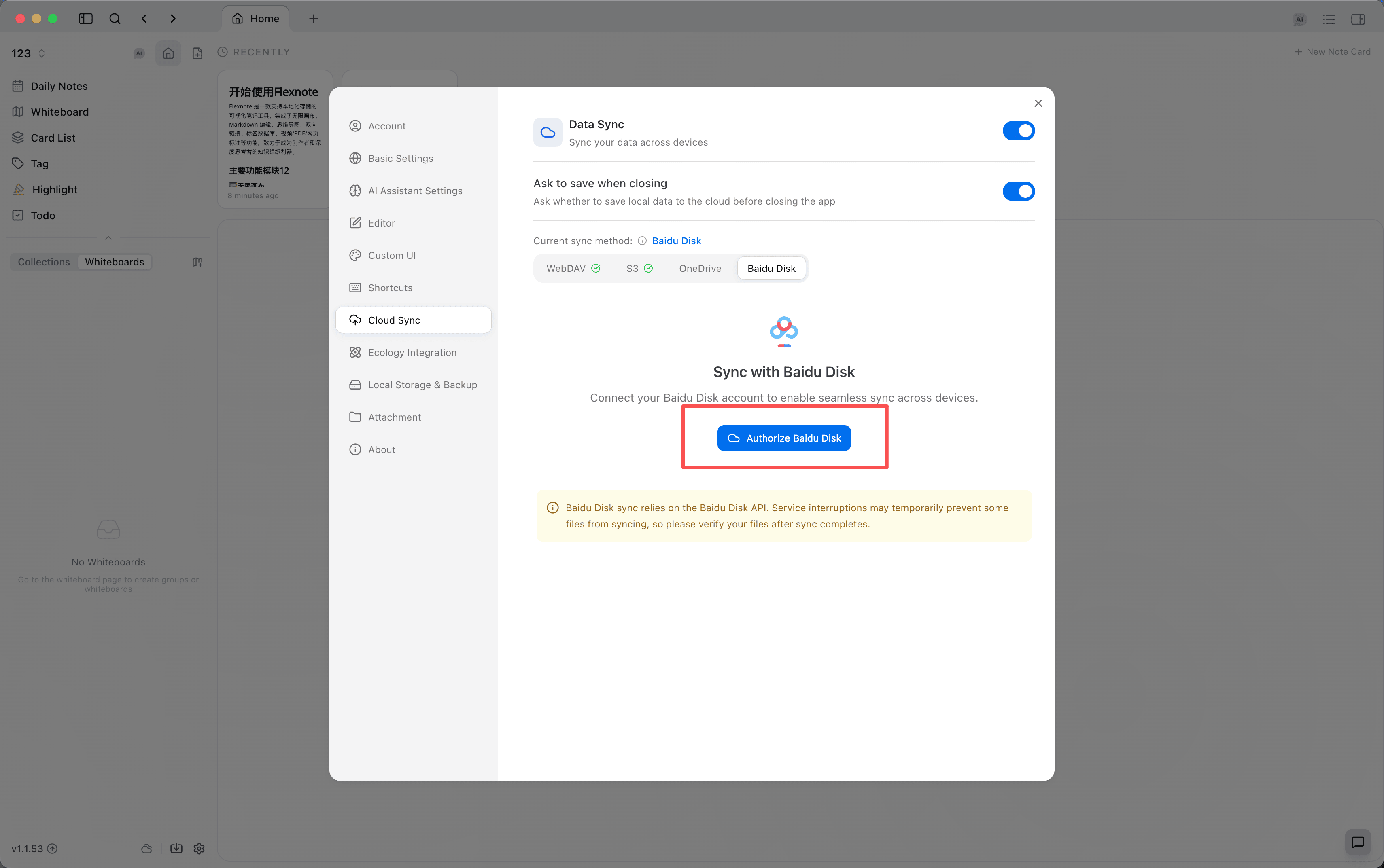
Baidu Netdisk sync depends on the Baidu Netdisk API. If the service fluctuates, some files may fail to sync for a while. Check the result after the transfer finishes.
Order across devices
Device A and device B are the example. Both have Flexnote installed and are connected to the same cloud service and the same path. For a one-time move to another computer, see the forum tutorial How to manually migrate data to another computer (opens in a new tab).
- Edit only on device A. When finished, click Upload to WebDAV, Upload to S3, Upload to OneDrive, or Upload to Baidu Disk, or choose save when quitting. Wait until the progress shows complete. The status updates the last upload time.
- After opening device B, click Sync from WebDAV, Sync from S3, Sync from OneDrive, or Sync from Baidu Disk before editing. If there are no risky changes, the merge happens directly. If the preview shows deletions or Local newer, confirm and then click Continue sync.
- After editing on device B, upload from device B.
- Return to device A. If device A is still open, Settings may show that the cloud has a backup not yet synced locally. Click Download and Sync before editing further. Uploading at that moment would replace the backup device B just uploaded.
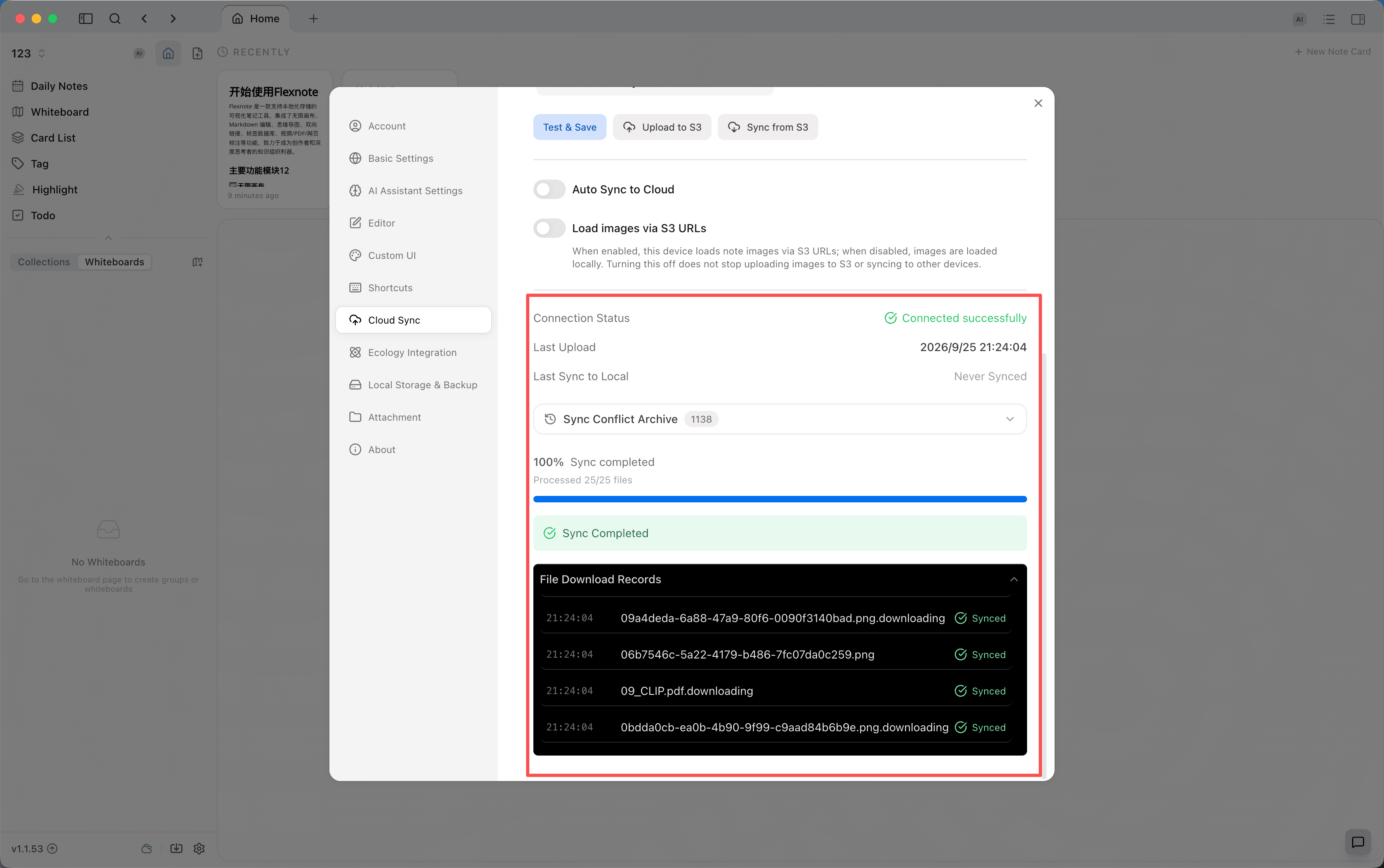
Auto Sync to Cloud sets the interval: 1 minute, 5 minutes, 10 minutes, 30 minutes, 1 hour, 3 hours, or 12 hours, and shows the next sync time. Auto sync only uploads. If another device has uploaded a newer backup, this upload is skipped and Auto upload paused appears. When that prompt appears, download and sync manually first.
Download before changing devices, and upload after editing. If several devices change the same card while offline, the device that uploads later replaces the cloud backup with its local library. Download and sync in Settings first, check the preview, and then decide whether to continue.
Conflict prompts
Upload is blocked
The title is Unsynced cloud backup detected, and it shows that backup's upload time and device.
- Download & sync first. Merge the cloud changes into this device. Prefer this.
- Force overwrite cloud. You must first acknowledge the risk. The cloud backup is replaced with this device's library. Use this only when you are sure the changes on the other devices can be dropped.
- Cancel. Nothing changes.
Sync preview before download
At this point the cloud backup has been downloaded locally and has not been written into the database. The preview includes added, updated, local newer, and deleted. Local newer means those records stay as they are on this device, and the cloud edits are not written. Deleted means that content will be removed from this device. Both kinds of change are written to the sync conflict archive before you continue. If neither risk is present, the window does not appear and the merge finishes directly.
Sync Conflict Archive
Sync Conflict Archive is at the bottom of the cloud sync settings, collapsed by default. Records that were overwritten, rejected, or deleted can be viewed here and restored to their original place. If Continue sync was confirmed by mistake, look here first.
Continue reading
Showing a whiteboard to someone else is in Writing and sharing. Plans are on the pricing page (opens in a new tab).