Core elements
Work in Flexnote centers on four objects: cards, whiteboards, tags, and AI. Cards hold the content. Whiteboards show the structure. Tags manage categories and properties. AI answers and organizes from material that has been indexed.
Cards
What they are
A card is a piece of content that can be opened on its own. Cards live together in the card library. Types include notes, images, audio and video, PDFs, web pages, mind maps, files, and highlights taken from a note, PDF, or video.
The same card can sit on more than one whiteboard, and other notes can mention or embed it. After the body changes, every reference shows the latest content. Card info lists the whiteboards that contain the card, and which items mention it.
Basic actions
- Create a note in Card List, or drop in a file to create the matching card. PDFs can be imported in a batch.
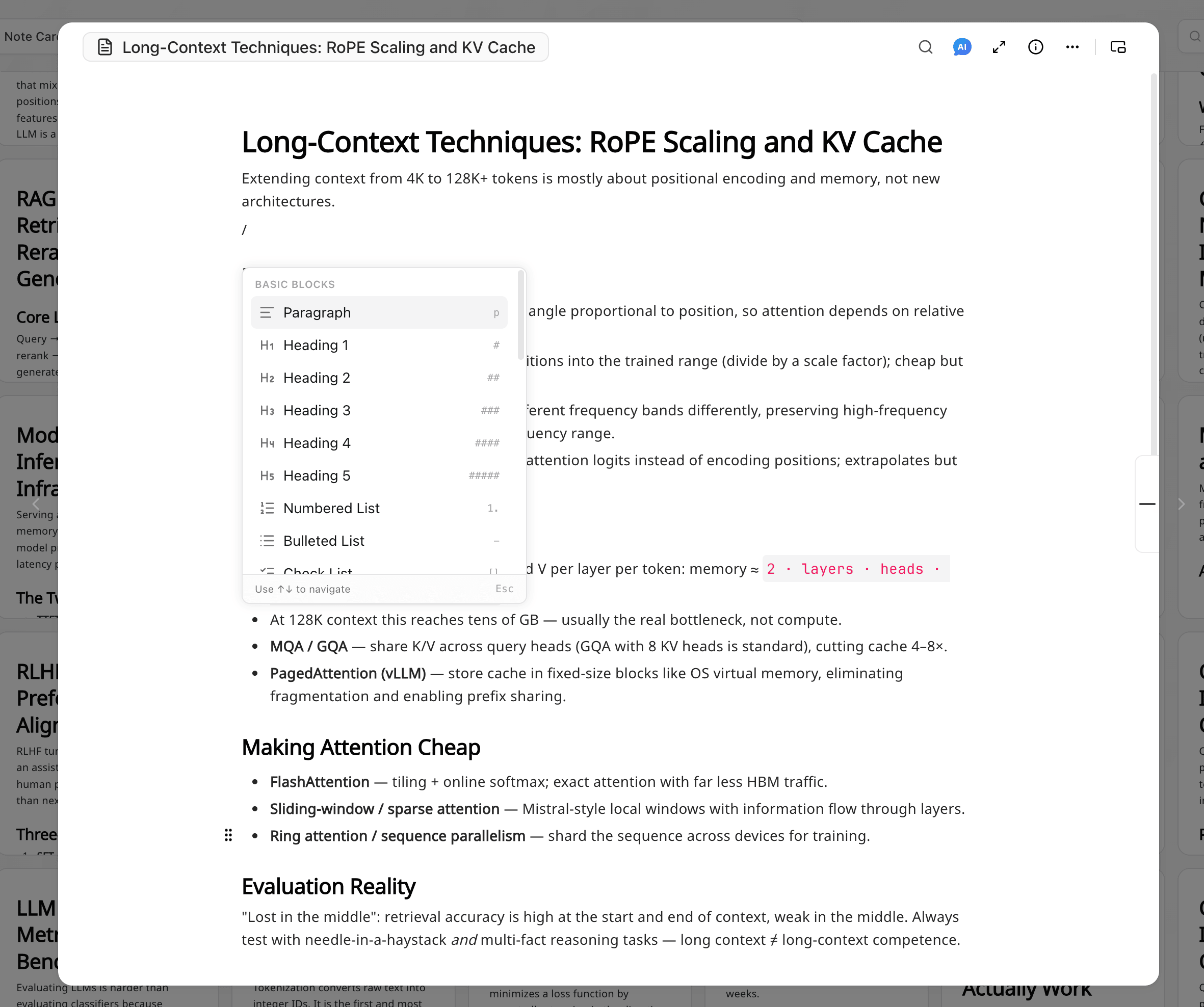
- On an empty line in the note editor, type
/to insert a heading, list, todo, table, code, formula, image, card embed, and similar blocks. - Type
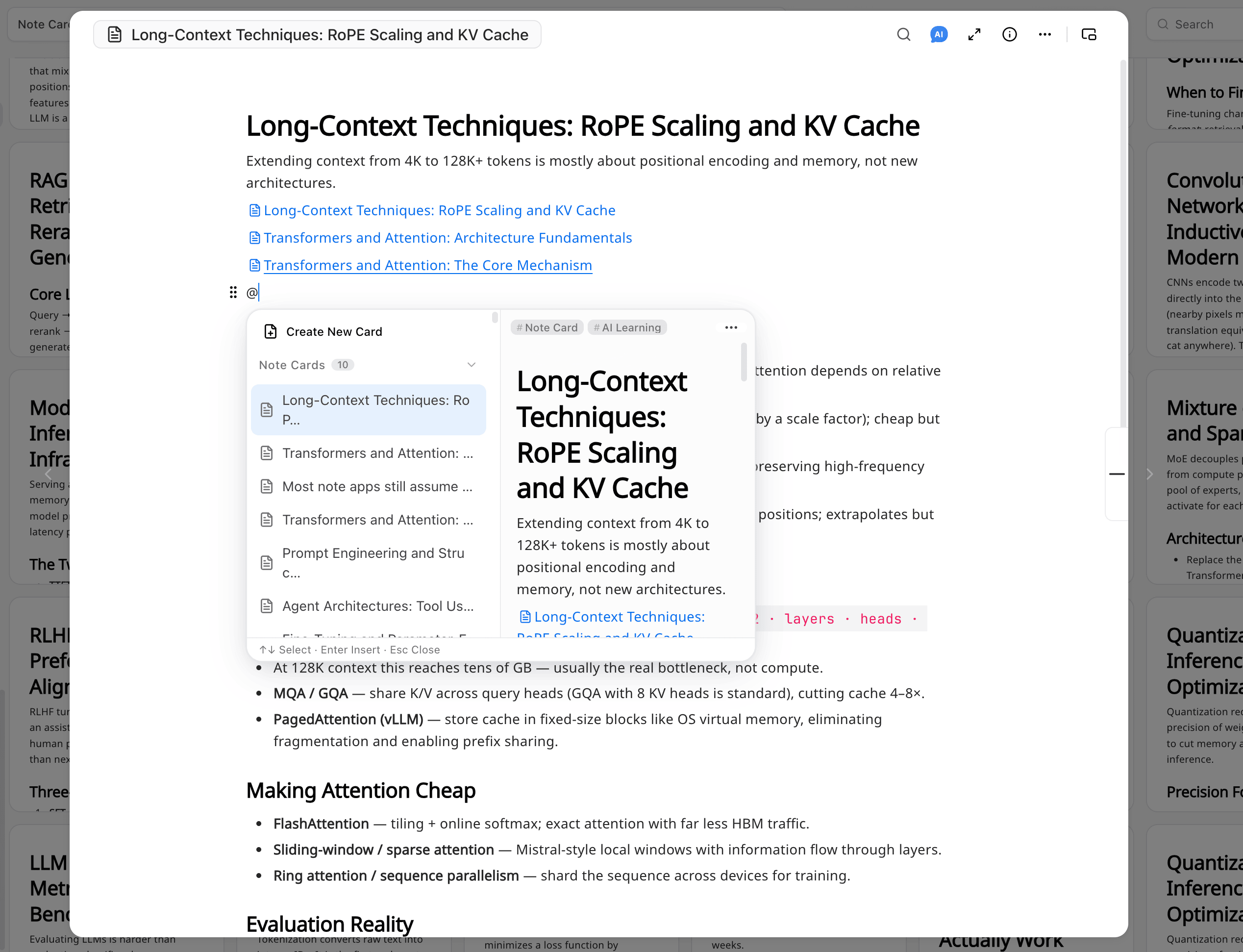
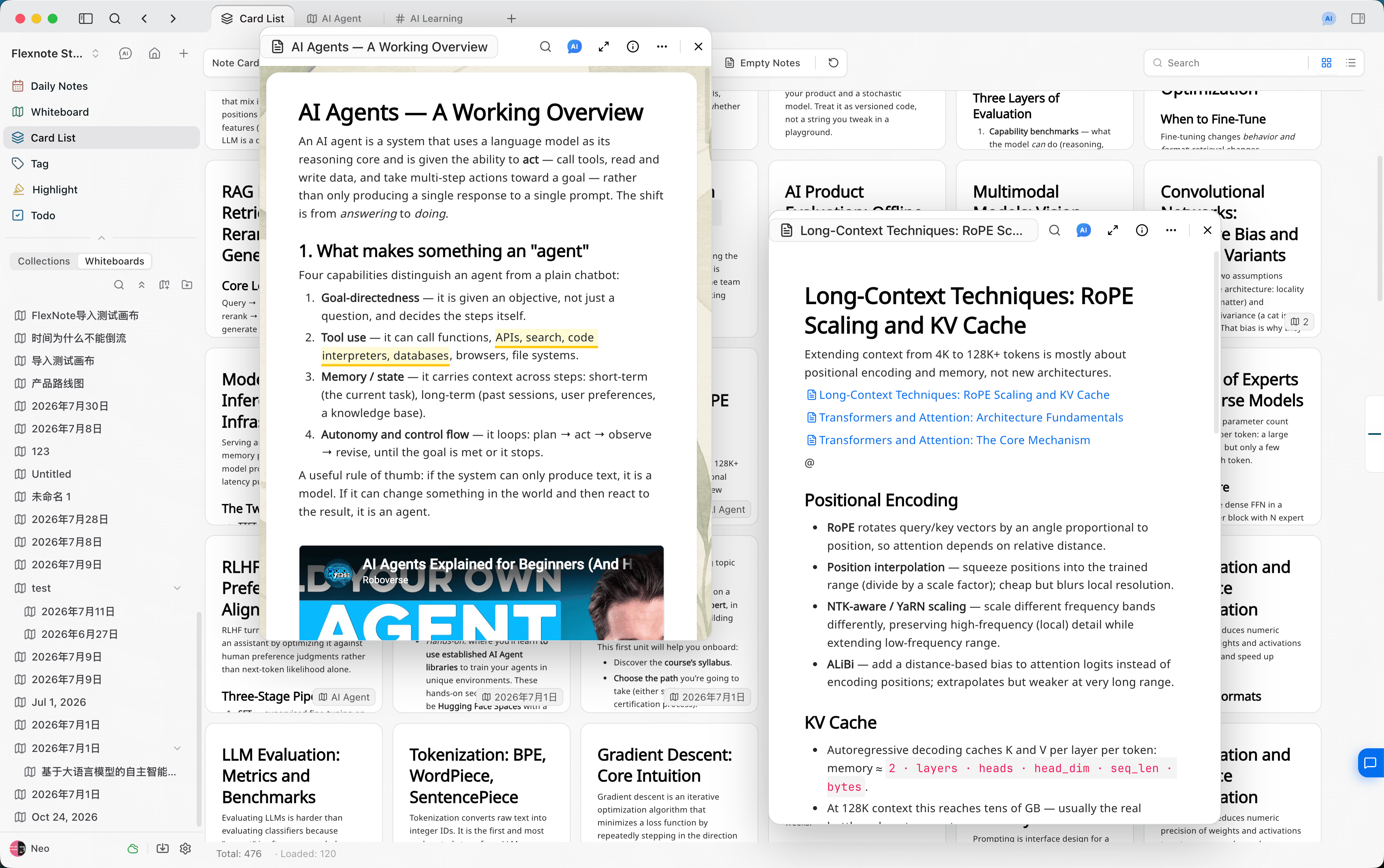
@,[[keyword]], or【【keyword】】to mention an existing card. The mentioned card records the source of the reference. - A card can open in a popover, a top tab, or its own window.
Whiteboards
What they are
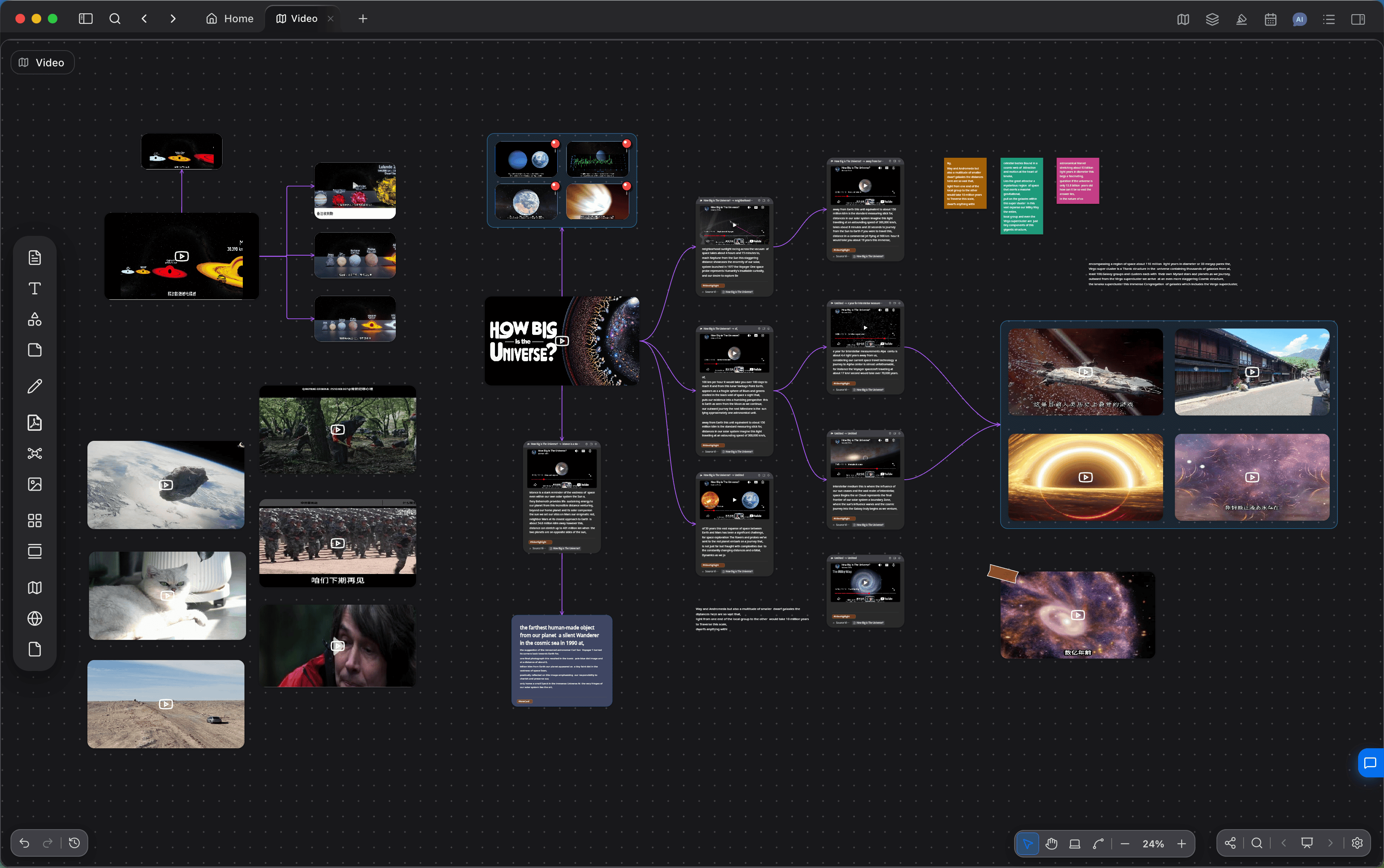
A whiteboard is an infinite canvas for studying and researching a topic. Arrange, group, and connect cards on the canvas. When the structure grows, show it as a mind map, or split subtopics with nested whiteboards.
A whiteboard does not store card bodies. A drag from Card List is a reference. A card created on the whiteboard also enters the card library. The same card can appear on several whiteboards at once. In card info, choose a whiteboard name to open that whiteboard and locate the card.
Basic actions
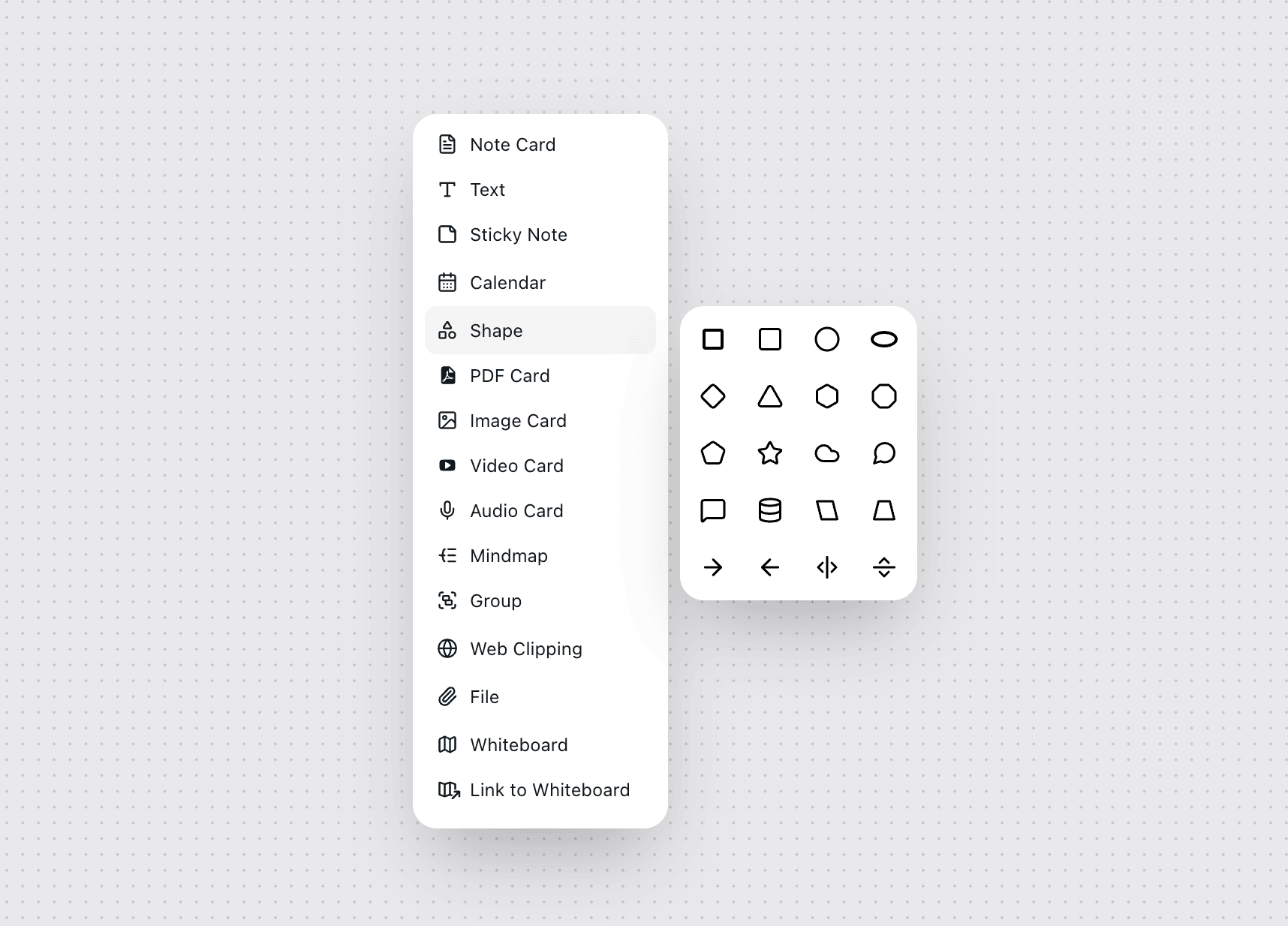
- Drag a card from Card List onto the whiteboard, or create a note, PDF, image, audio or video, web page, or file on empty canvas.
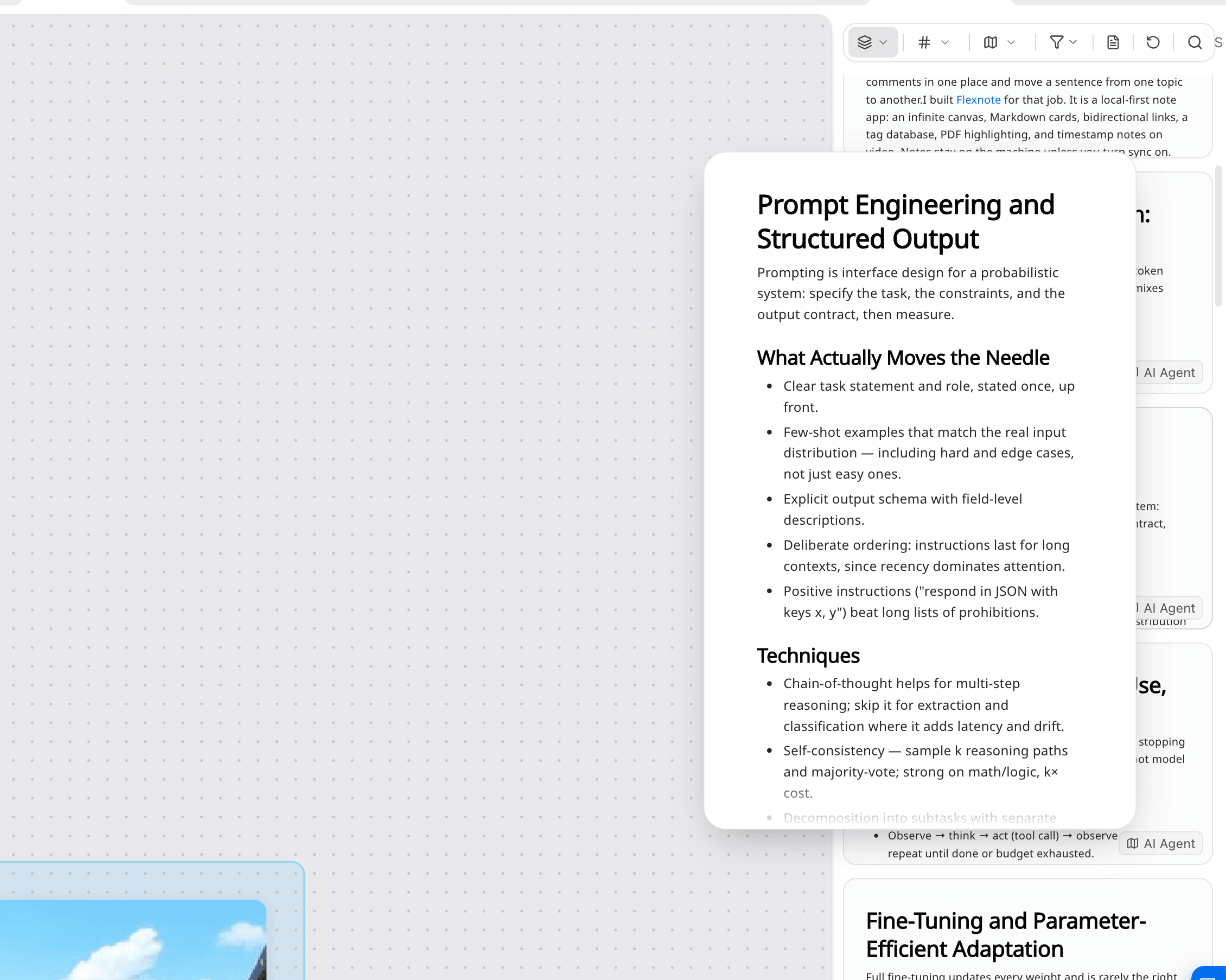
- Move objects with the select tool, pan with the hand tool, and draw relationships with the connector tool. Drag on empty space to marquee-select.
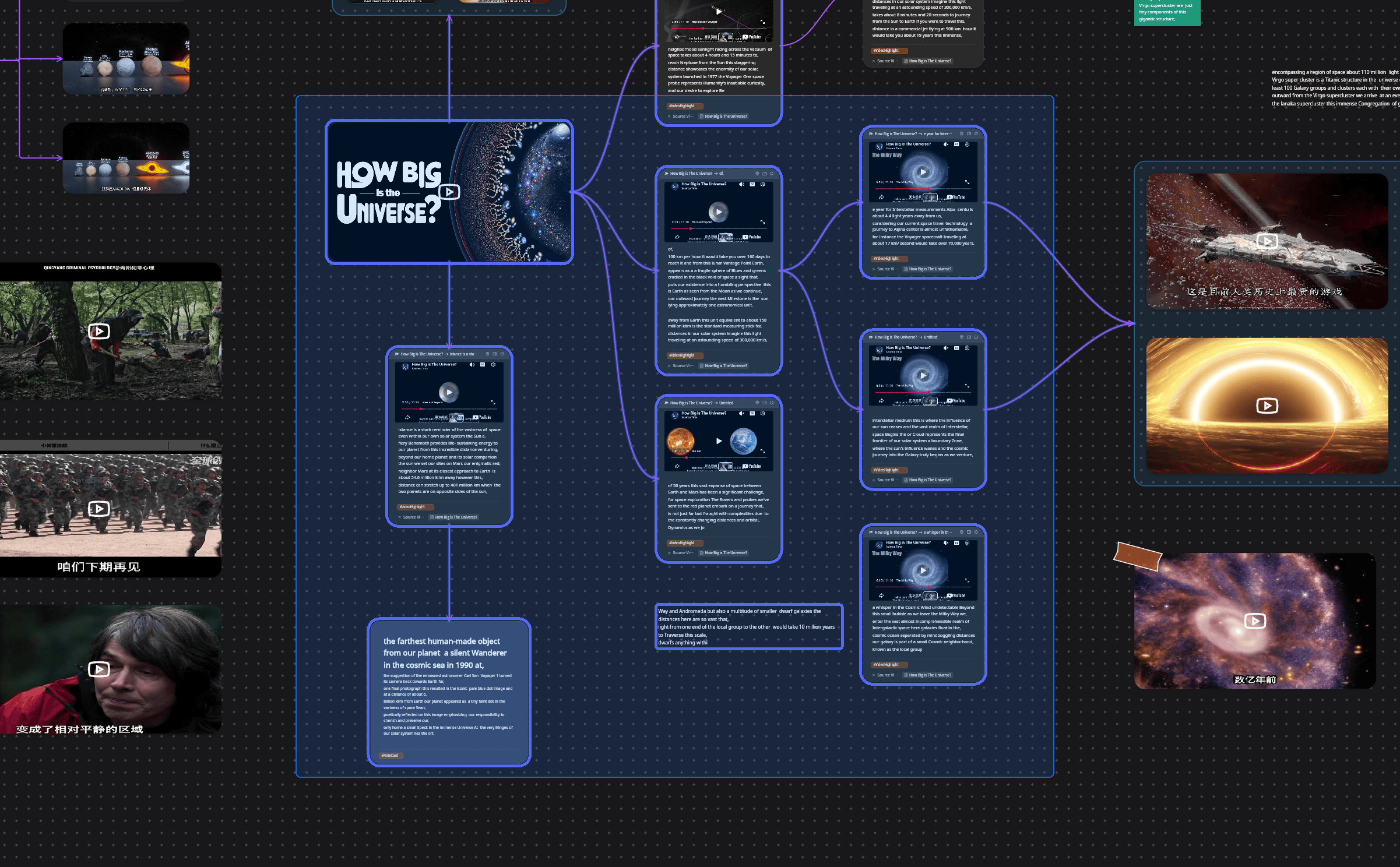
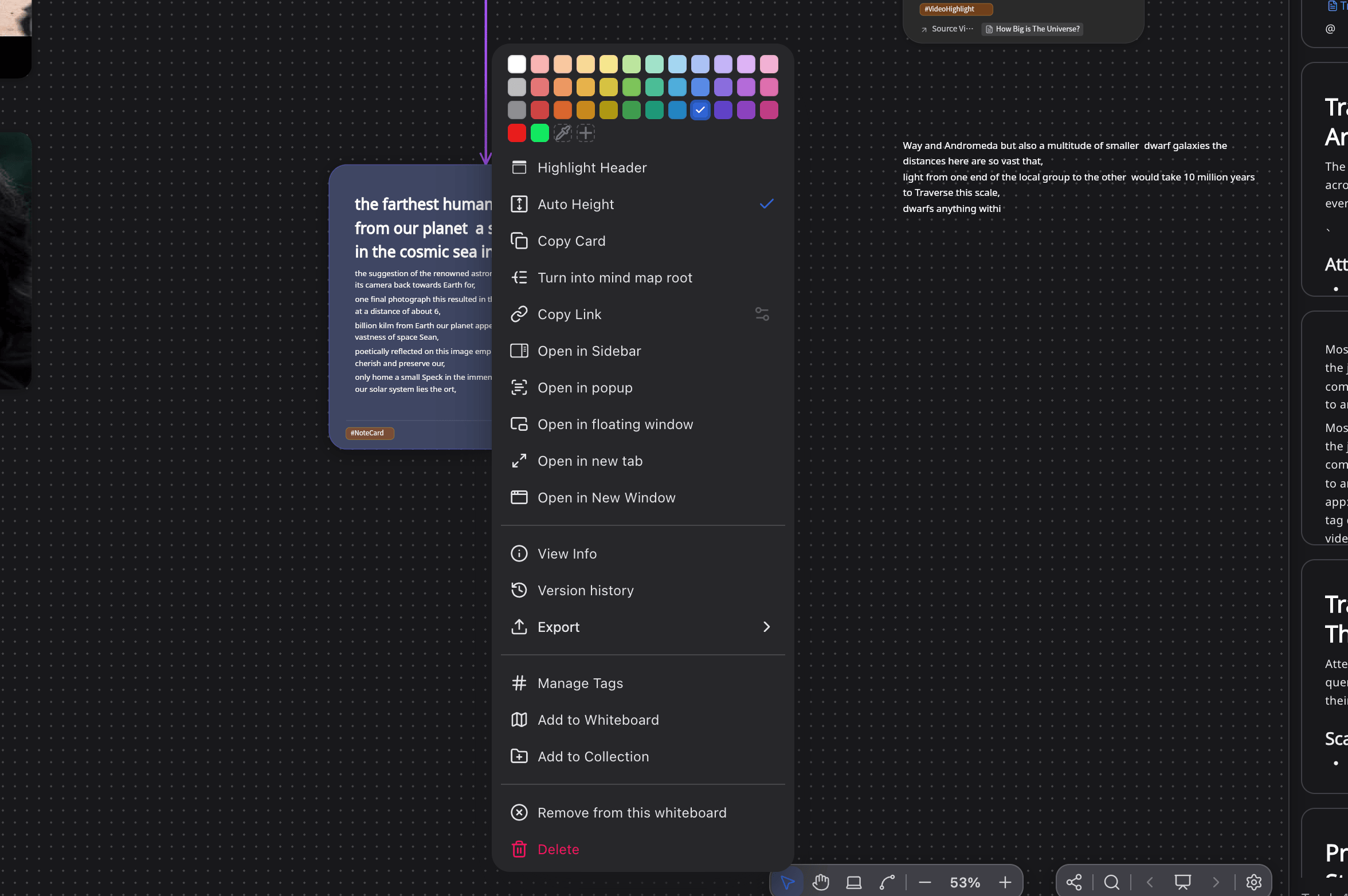
- Group objects, or switch to a mind-map layout. The right-click menu includes color, tags, export, and opening in a new tab.
- The canvas also has shapes, sticky notes, and drawing, for layout. When you need to present, divide the board into scenes and play them in order.
Tags
What they are
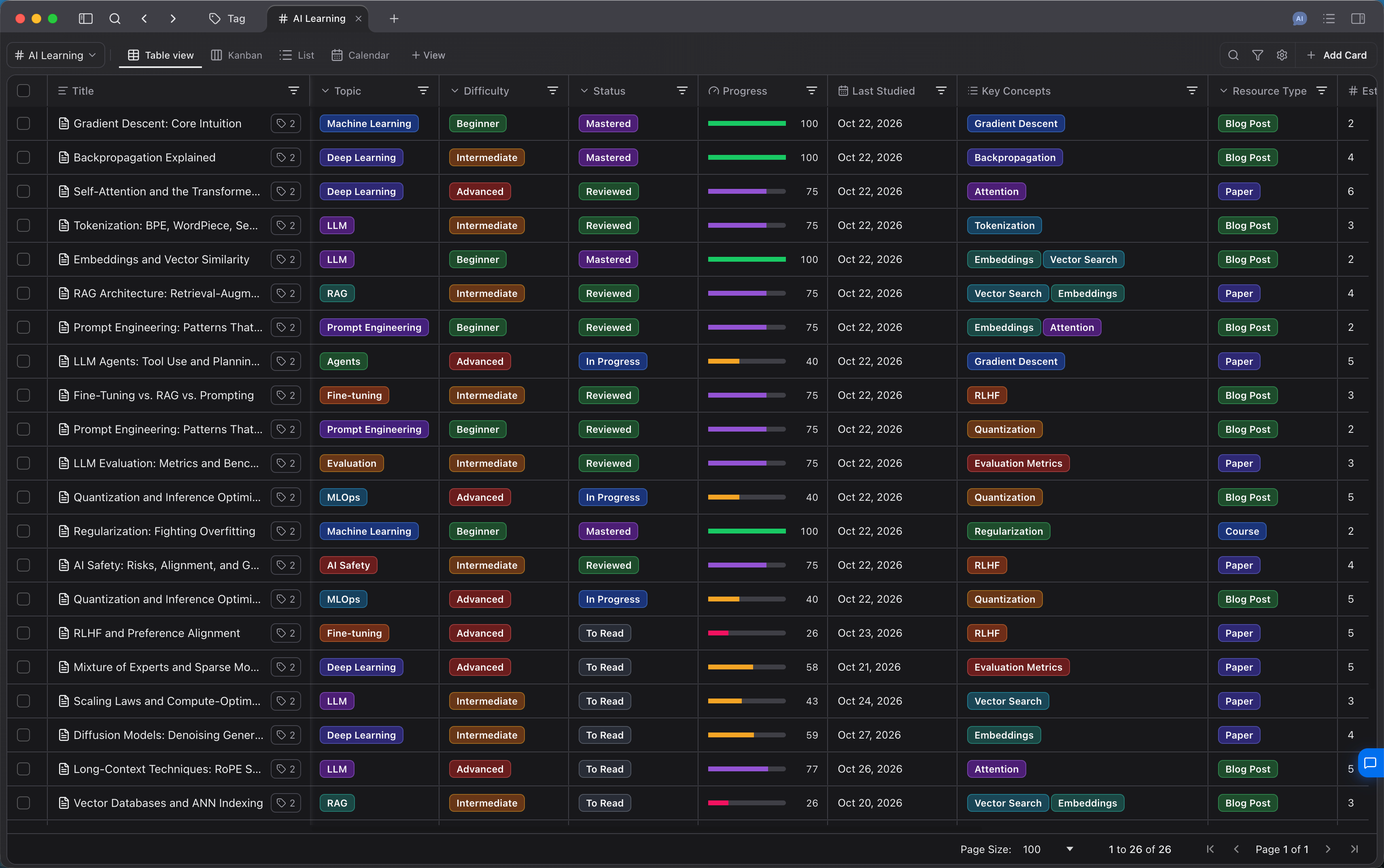
Tags add categories and custom properties to a card, such as status, date, progress, and relations. A card can have more than one tag. A tag page can show the cards under that tag as a table, list, or kanban, and filter or sort by property.
Tags record category and status. References between cards are mentions and links. Topic structure lives on whiteboards.
Basic actions
- Choose an existing tag on a card, or create a tag there.
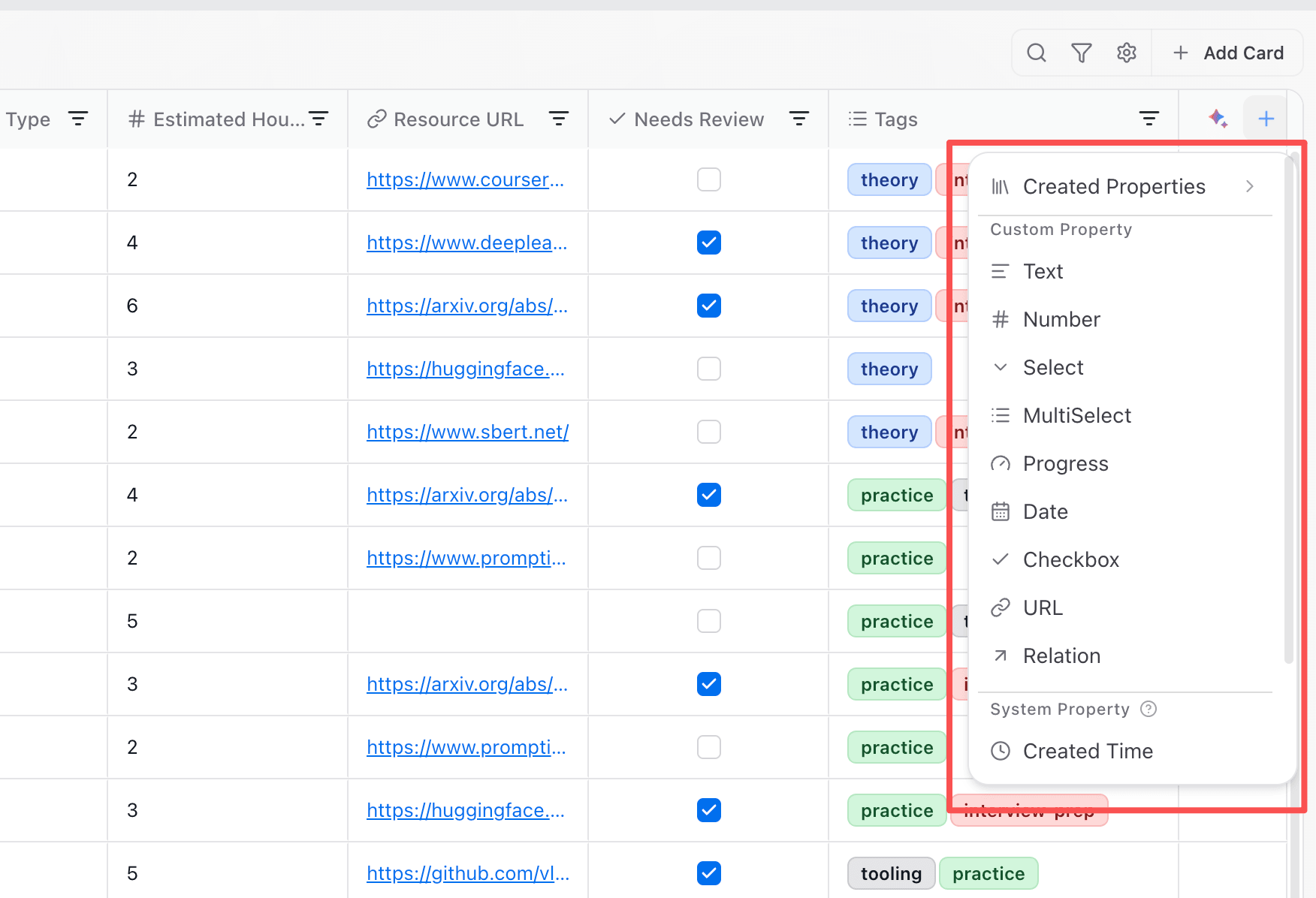
- Add property fields to a tag. Common types are text, number, select, multi-select, date, checkbox, URL, progress, and relation.
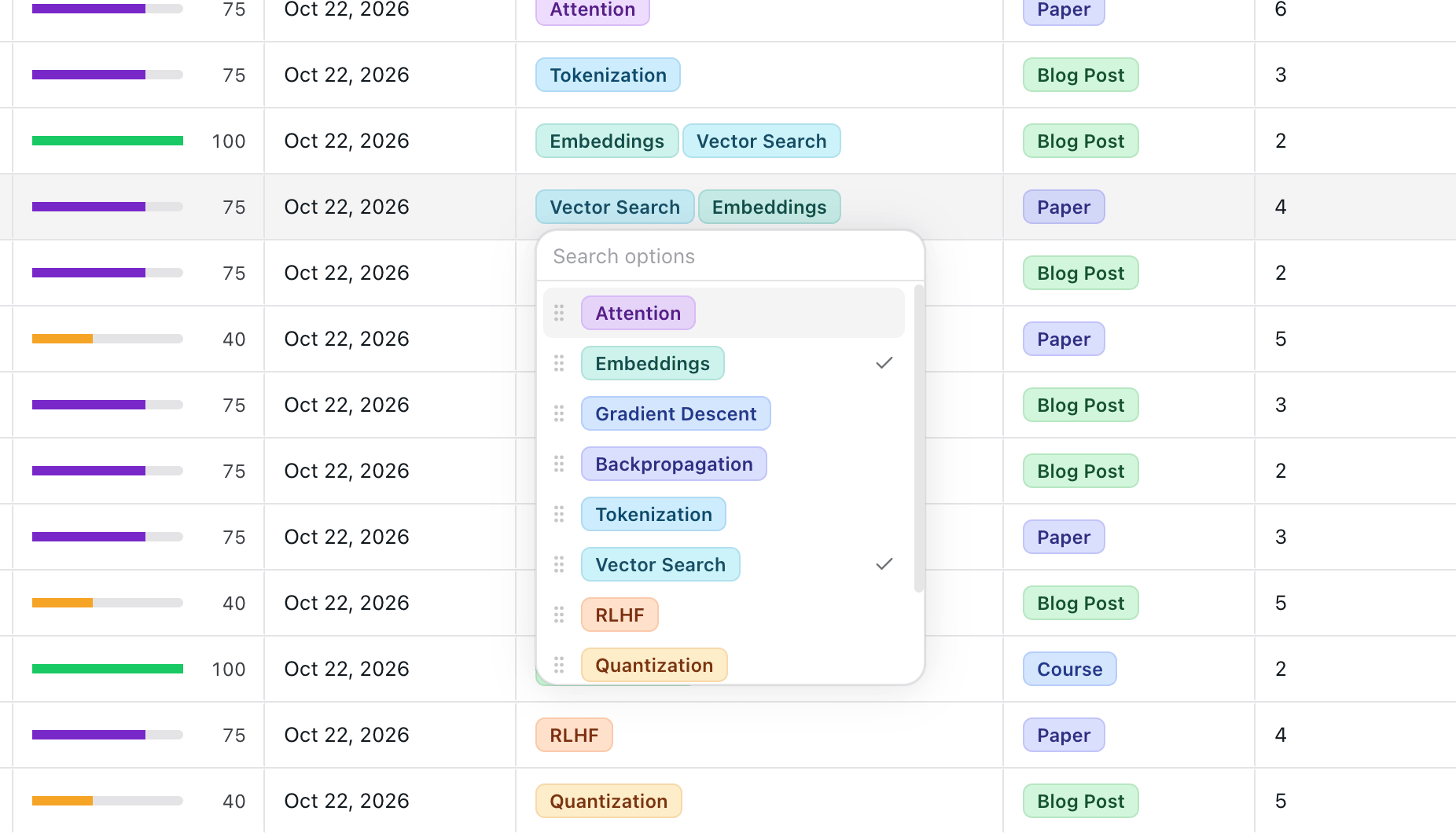
- Open the tag page and edit properties in place in the table, list, or kanban.
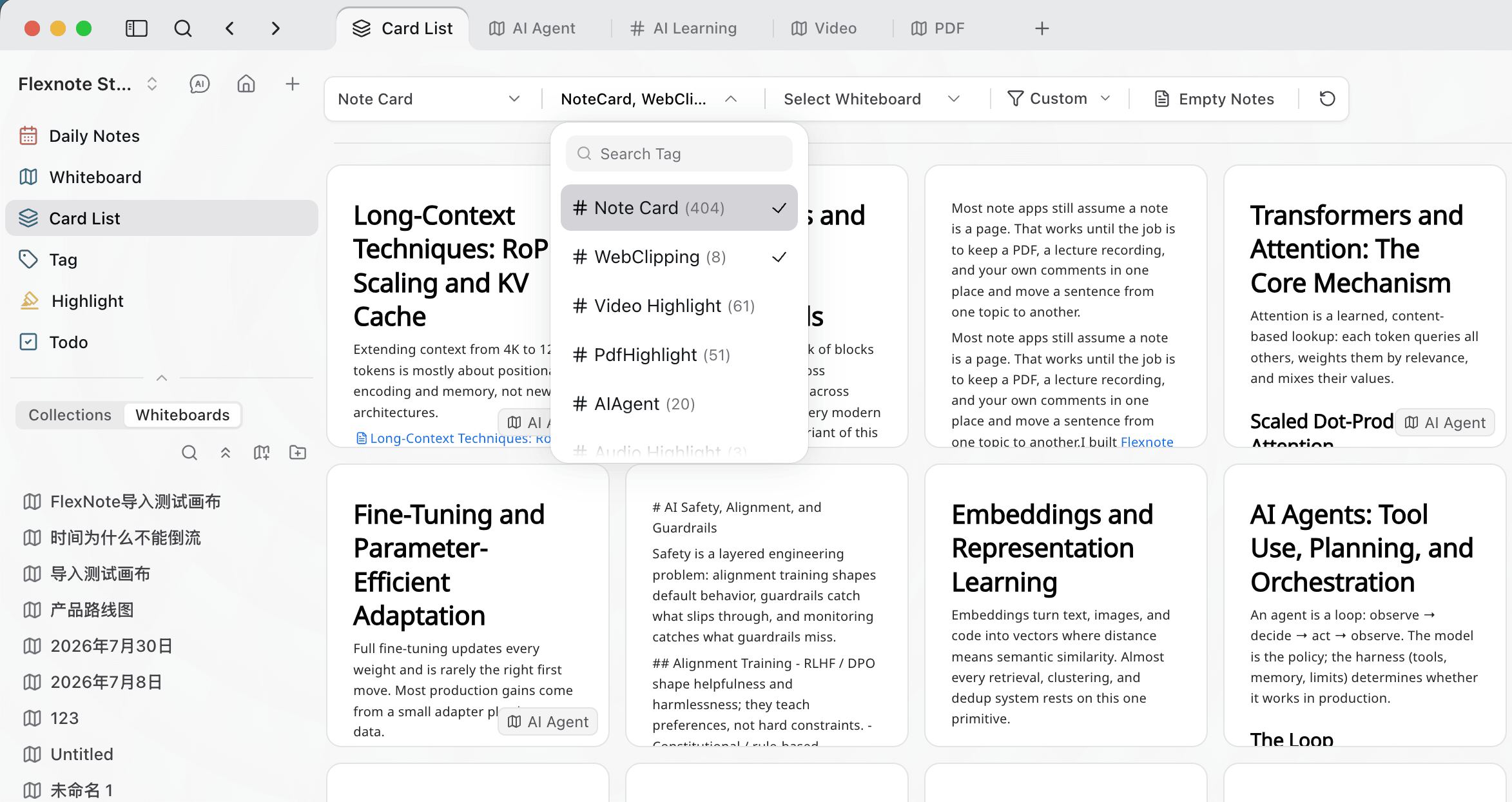
- Card List can filter by tag. Saved filters stay on this device.
AI
What it is
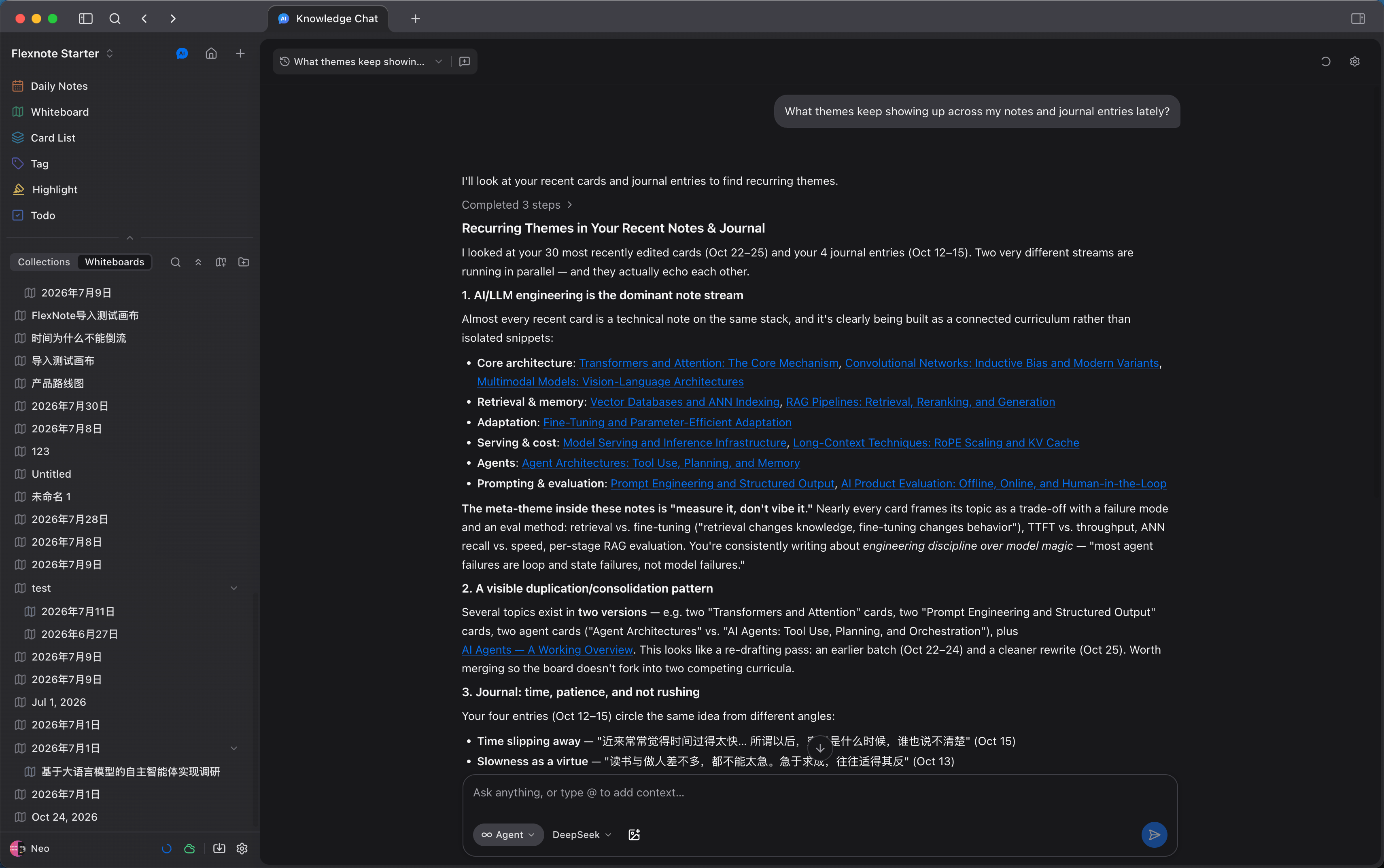
Knowledge-base AI answers from indexed notes, whiteboards, PDFs, text recognized in images, and media subtitles. An answer can cite its source and jump to a note paragraph, a PDF page, or a media timestamp.
There are two uses. Q&A retrieves, summarizes, and compares. Agent can, after confirmation, create or edit cards, todos, and tags, and add sticky notes, connectors, and groups on a whiteboard. AI shortcuts on a card can summarize, translate, generate a mind map, or run a custom prompt for the current card. Model calls use the API key configured in settings.
Basic actions
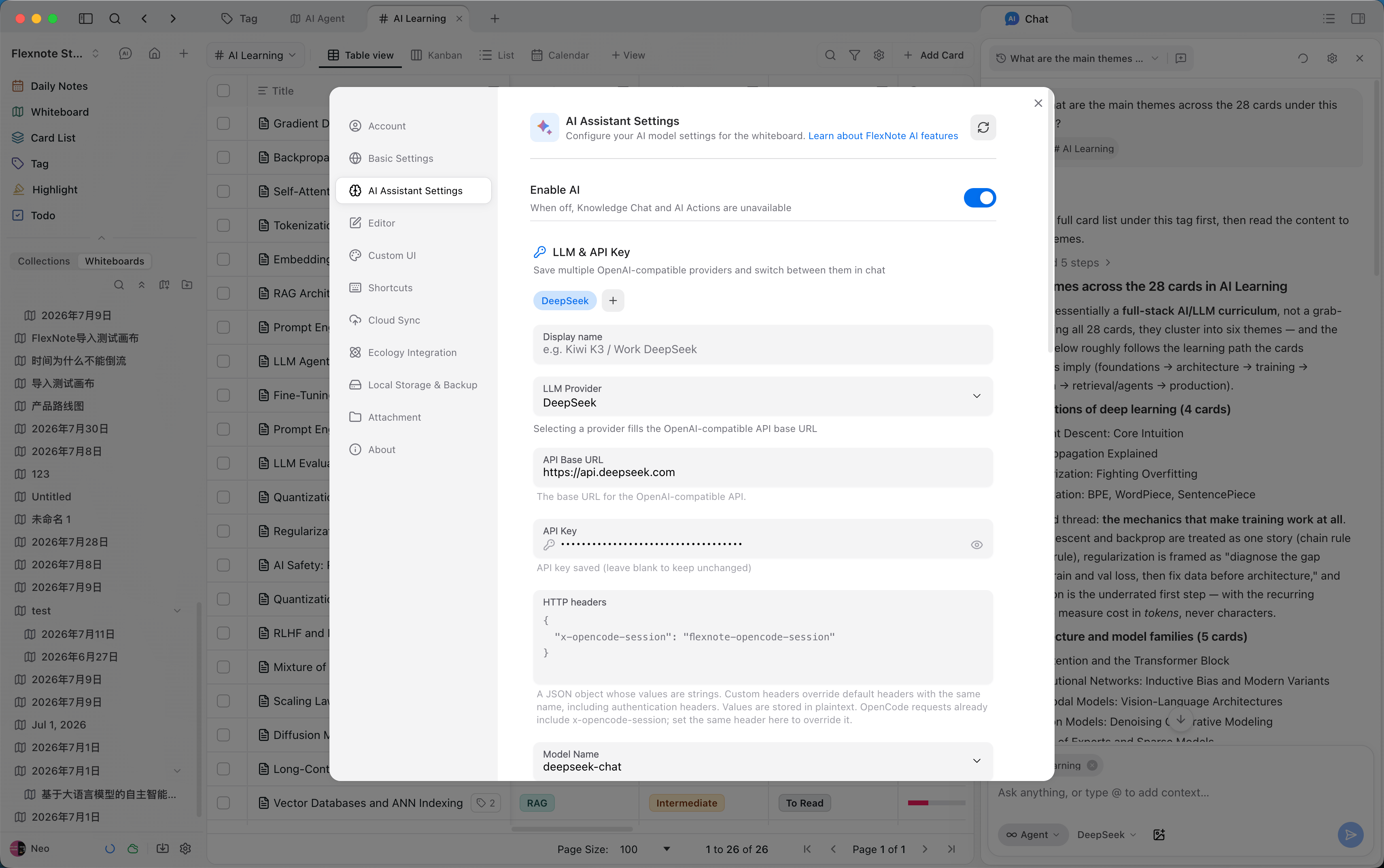
- Open Settings > AI Assistant Settings, turn AI on, and finish the model connection. To search body text, index the relevant cards first. A scanned PDF needs text recognition. Video and audio need subtitles.
- Open the AI panel from a card or a whiteboard. The current content is the context. Type
@in the input to add another card.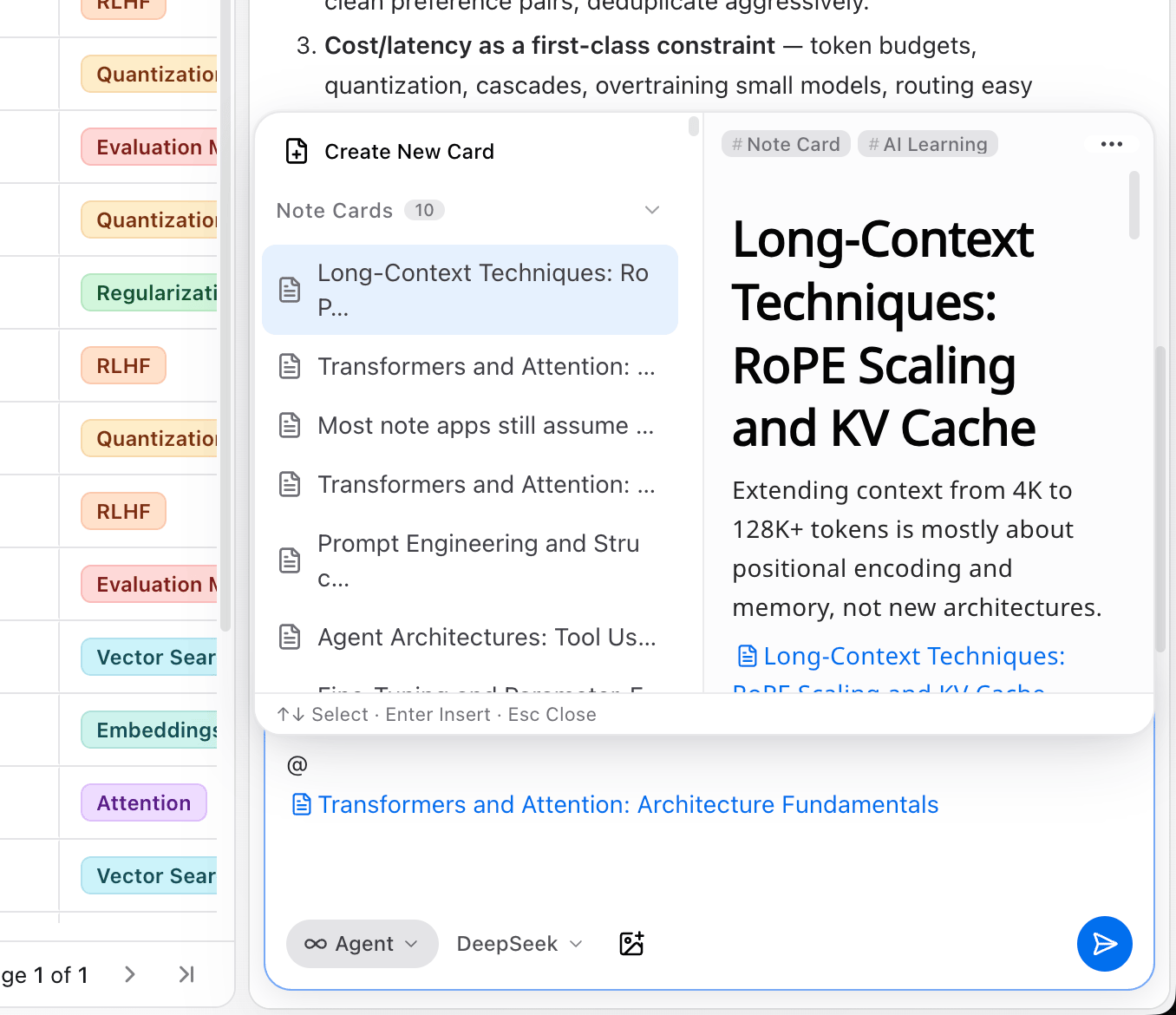
- A useful conclusion can be written into a card or a daily note, or saved as a mind map and placed in the card library.
- Use an AI shortcut on a card on the whiteboard. Before Agent writes, confirm the target range.
Continue reading
Interface entries are in Interface. Choosing a path by task is in Use cases.