Interface
Flexnote splits lasting entries, whatever is open now, and tools for the current item into three places. The left sidebar returns to Daily Notes, Whiteboard, Card List, and the other pages. The top tab bar keeps what you opened this session. The right sidebar shows information and AI for the current page.
Left sidebar
Daily Notes, Whiteboard, Card List, Tag, Highlight, and Todo in one workspace share the same cards. After you switch workspace, notes and settings are separate.
The entries at the top of the sidebar:
| Entry | Role |
|---|---|
| Daily Notes | Record and review each day on a timeline. An empty date can be expanded and filled in |
| Whiteboard | See and open every whiteboard, including nested ones |
| Card List | Browse every card, and filter by type, tag, and whiteboard |
| Tag | Manage tags, properties, and table, kanban, and list views |
| Highlight | Review annotations taken from notes, PDFs, and videos |
| Todo | Collect tasks from notes |
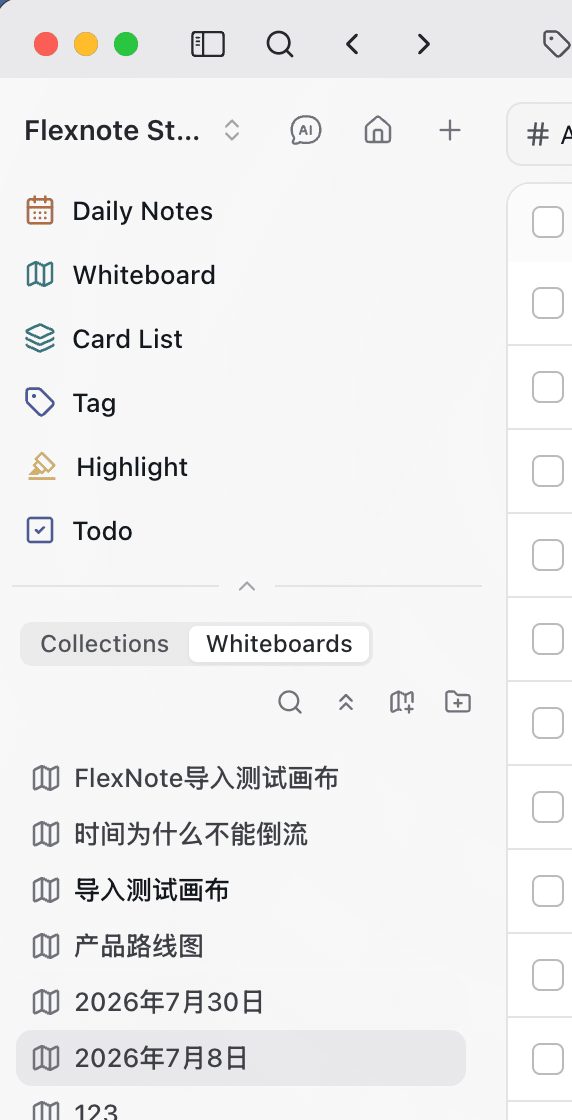
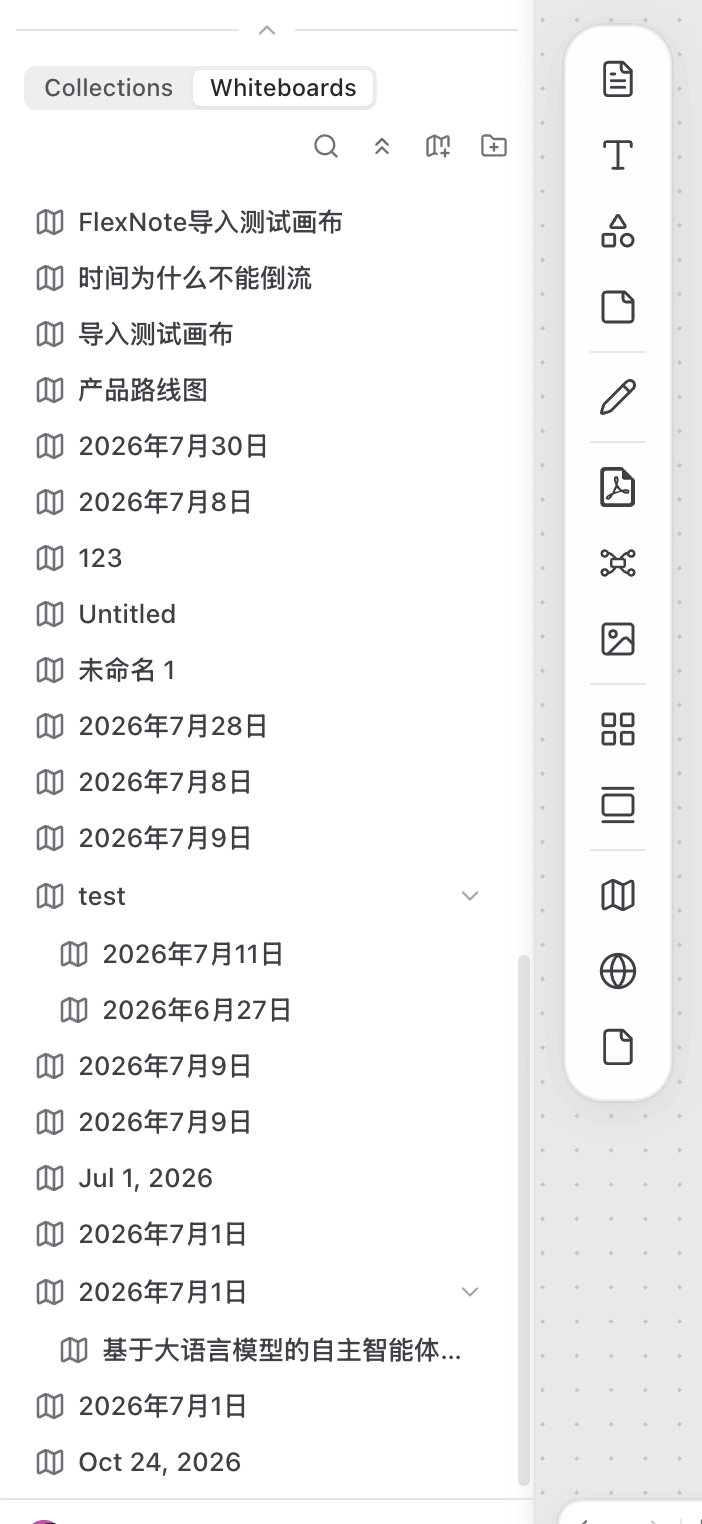
The lower part of the sidebar switches between Collections and whiteboards. Collections pins frequent whiteboards and pages. The whiteboard list shows the whiteboards in the current workspace, with nested boards indented under their parent. Removing an item from Collections only removes the entry. It does not delete the original.
The home view shows note cards as a table by default, and can switch to kanban or list.
Top tab bar
Opening a card, whiteboard, PDF, mind map, web page, media item, daily note, or tag places it in the top tab bar. If that item is already open, opening it again switches to the existing tab.

Tabs can be dragged to reorder. Closing a tab only removes it from the bar. It does not delete the content, and it does not remove a collection pin. Cmd/Ctrl + W closes the current tab. A tab can also open in its own window for side-by-side reading.
Right sidebar
The right sidebar changes with the current page. It is for viewing or acting on what you are working on.
AI. Open a conversation from a card or a whiteboard. The current content is the context.
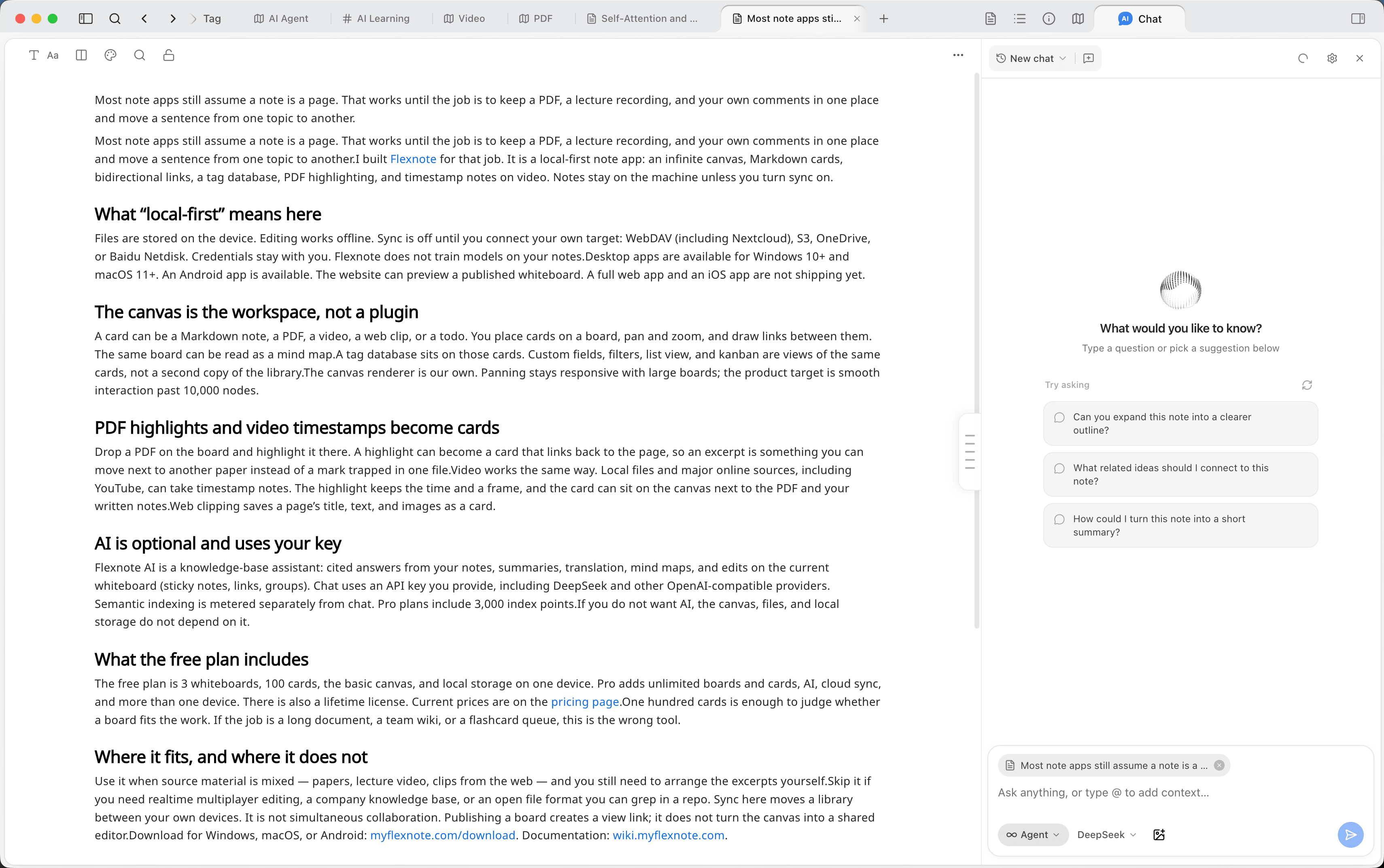
Card info. View tags, properties, and mention relationships.
Whiteboard location. This tool appears only on a card tab. It shows which whiteboards contain the current card, and where the card sits on each one.
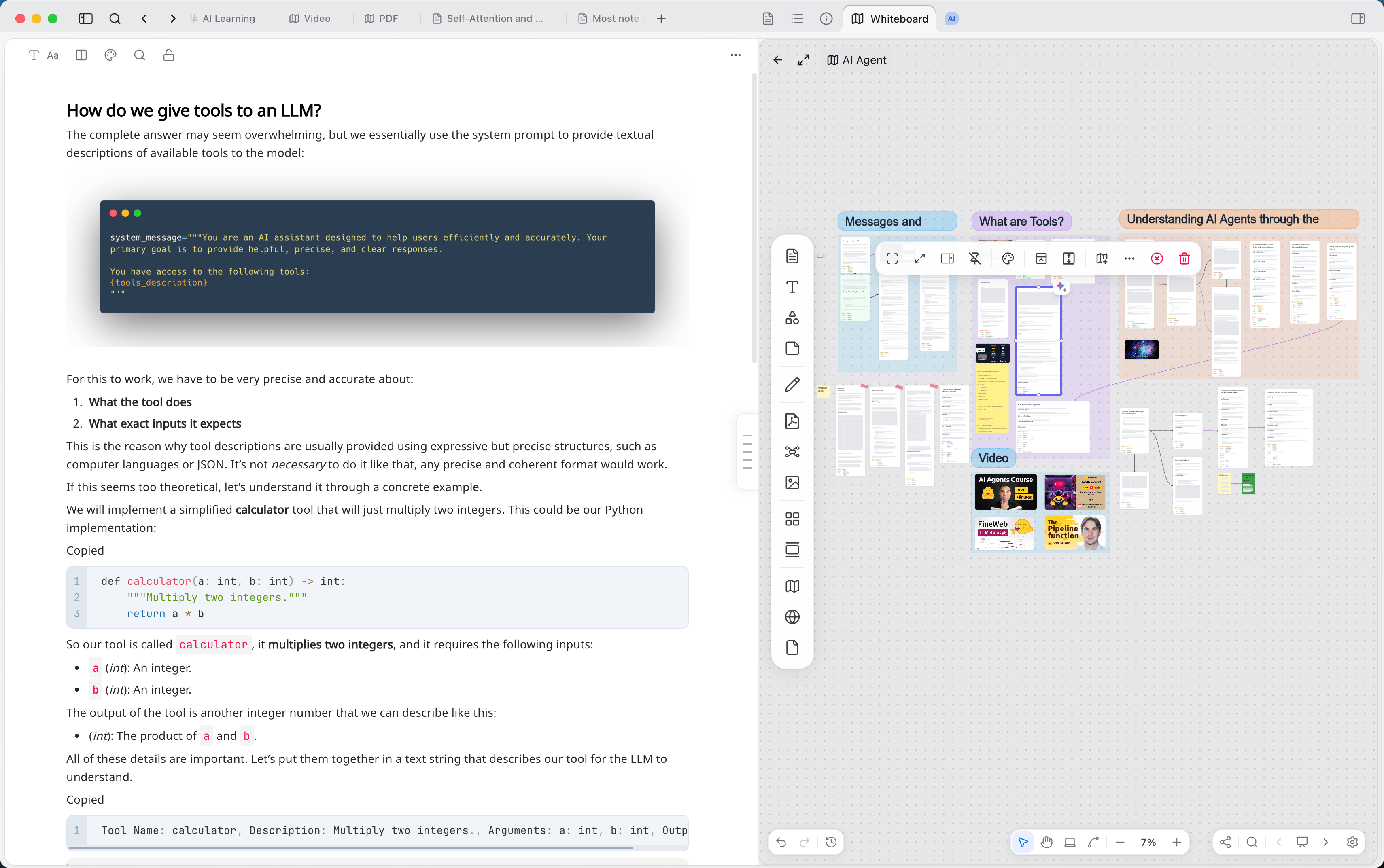
Outline. Jump by heading in a note. On a whiteboard, see the group structure.
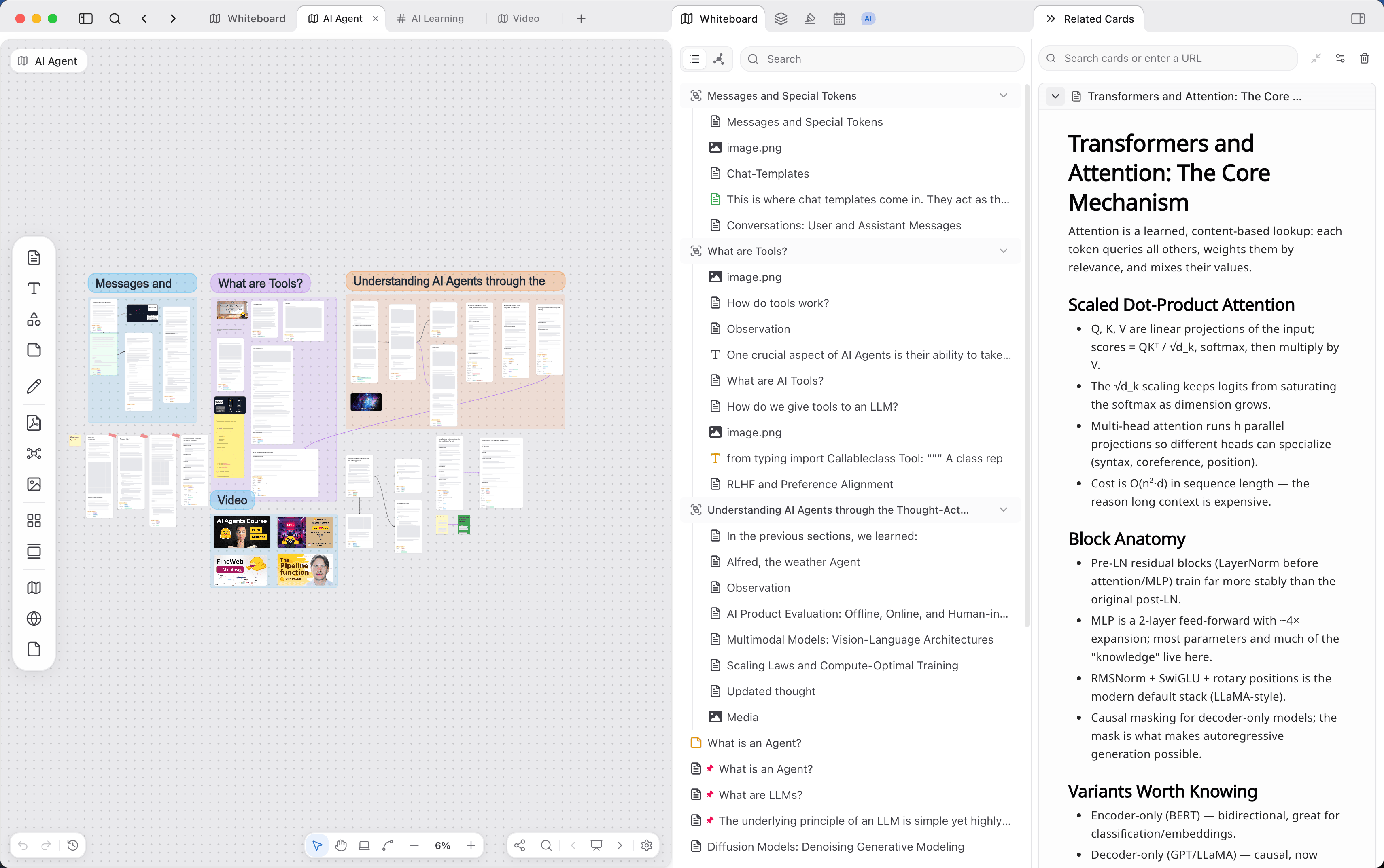
On a whiteboard you can open the card list and related cards together. The card list organizes canvas objects by group. Related cards show items that reference the current object, and can preview the body.
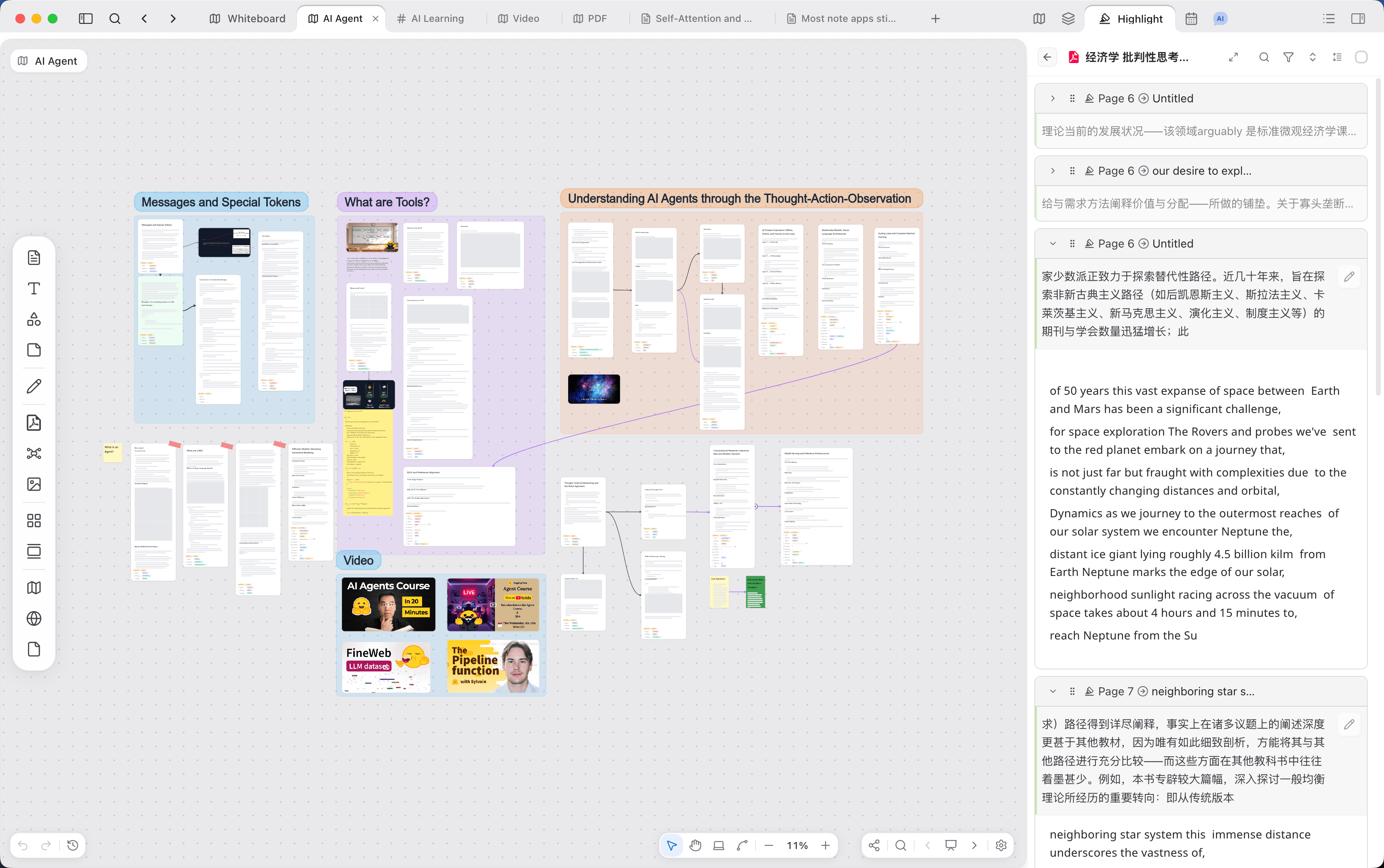
Highlights. List annotations in a PDF, video, or audio file, and return to the page or timestamp. A whiteboard can open the highlight panel as well.
Global tools
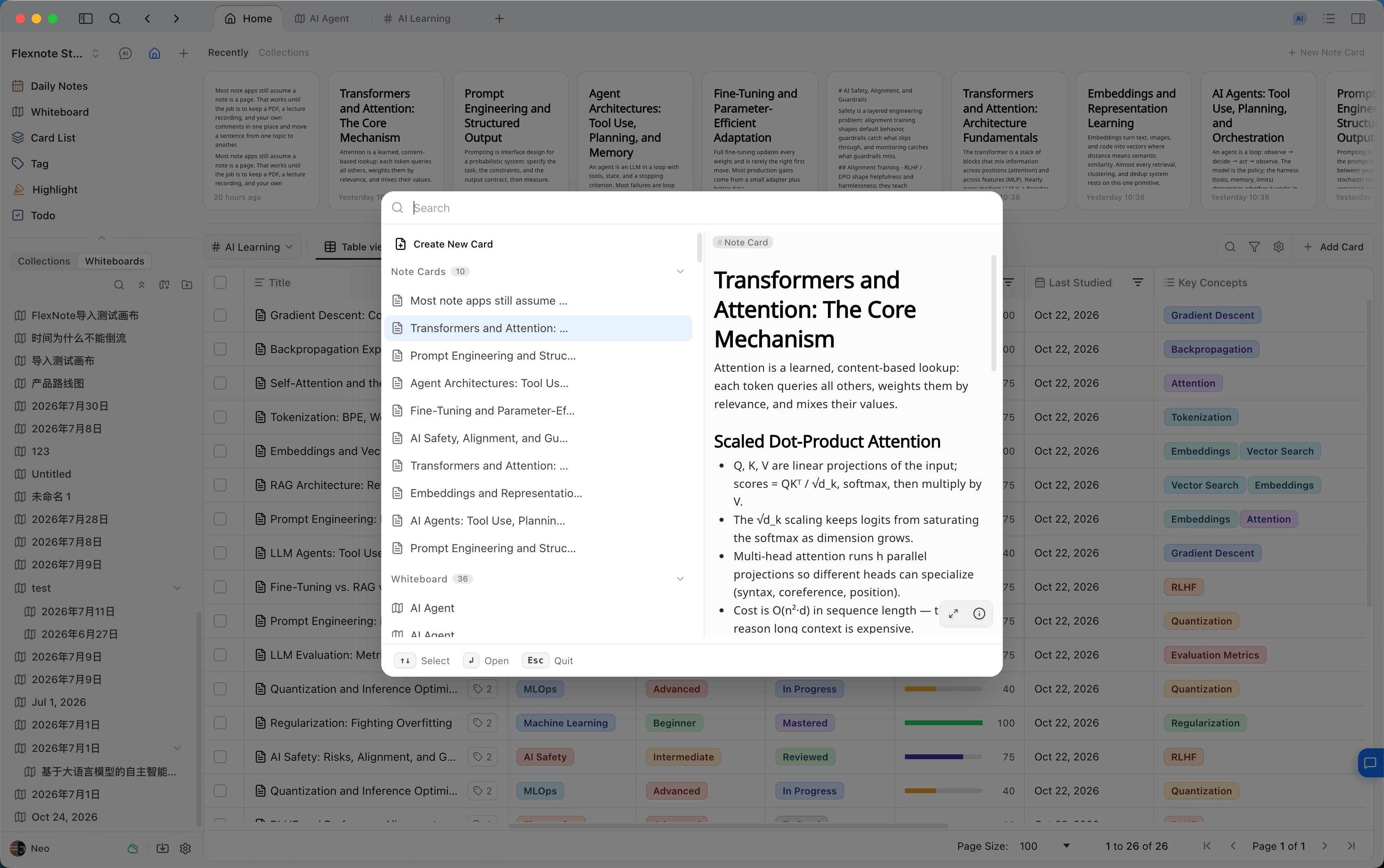
Cmd/Ctrl + O opens global search across cards, blocks, and highlights in PDFs, videos, and audio.
Frequent entries:
| Action | Shortcut |
|---|---|
| Open search | Cmd/Ctrl + O |
| New card | Cmd/Ctrl + N |
| Quick capture | Cmd/Ctrl + Option/Alt + N |
| Show or hide the sidebar | Cmd/Ctrl + \ |
| Daily Notes / Whiteboard / Card List / Tag | Option/Alt + Shift + 1 through 4 |
| Highlight | Option/Alt + Shift + 6 |
| Open Settings | Cmd/Ctrl + , |
The full list is in Shortcuts.
Continue reading
The objects themselves are in Core elements. Choosing a path by task is in Use cases. How to use Collections is in Organize knowledge and projects.