Working with AI
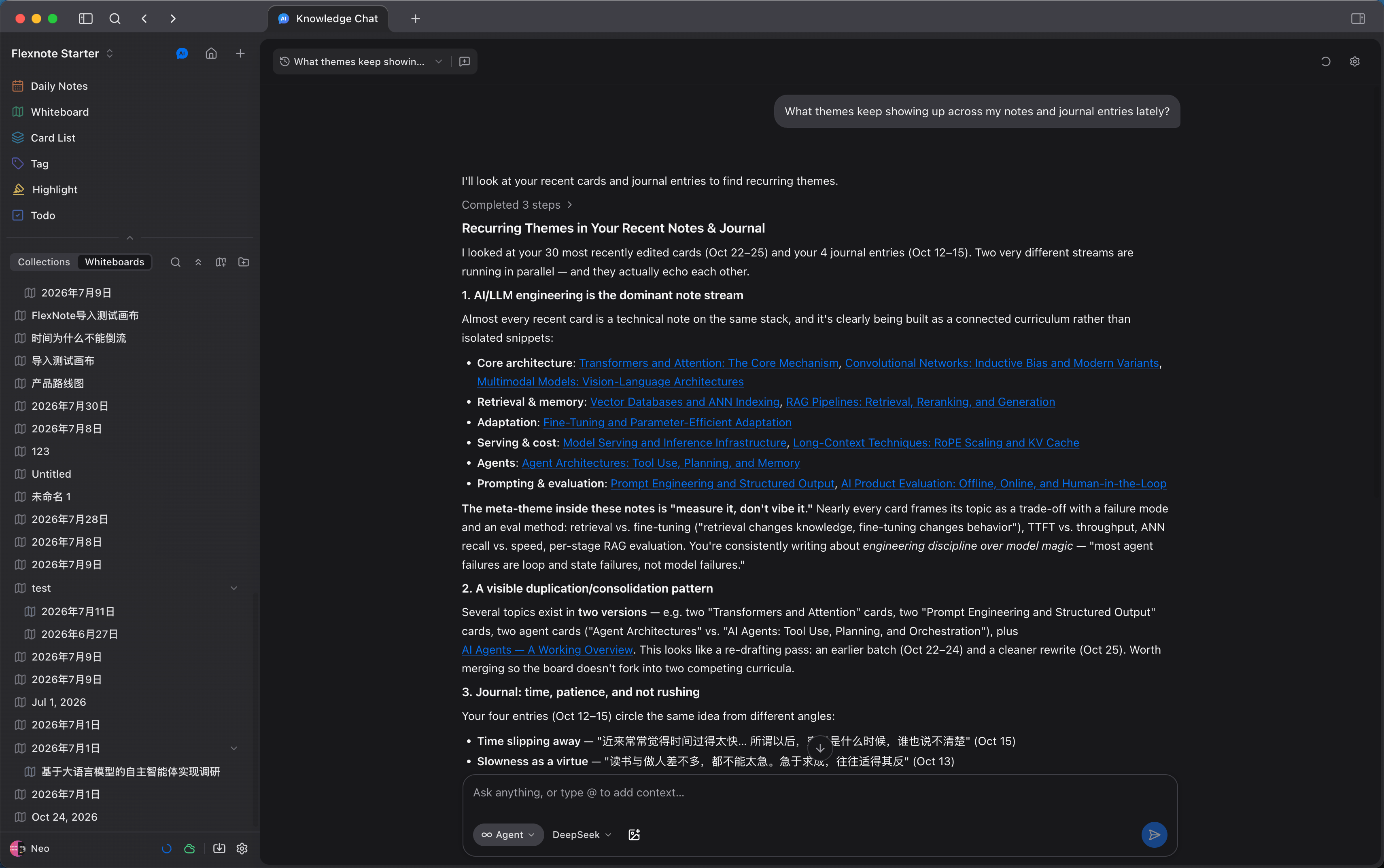
Notes and whiteboards still stay on the device. Flexnote AI queries the indexed material on top of that, answers with sources, and can, after confirmation, create cards, organize tags and todos, and edit sticky notes, connectors, and groups on a whiteboard. The model uses your own API key. This capability is part of Pro.
When keywords do not match, semantic search can find notes by meaning. Cards scattered on a whiteboard can be grouped and connected by topic by Agent. Questions and edits happen in the same library, and a conclusion can be written back into a card or a daily note.
Three capabilities
| Module | Role | Requirement |
|---|---|---|
| Knowledge-base chat / Agent | Query notes, edit a whiteboard, create cards, manage todos | Your own API key |
| Card AI shortcuts | Summarize, generate a mind map, translate, custom prompts | Same as above |
| Smart index | Semantic search, text recognition in images | Pro includes 3,000 points. Buy more when they run out. Purchased points stay valid |
After upgrading to Pro, turn AI on and finish the connection in Settings > AI Assistant Settings. Index packs and plans are on the pricing page (opens in a new tab). At about 500 characters per note, the included 3,000 points can process about 4,000 ordinary notes.
Finish setup
Open Settings > AI Assistant Settings. The chat title bar has an entry as well. Turn AI on, choose a provider, fill in the API key, Base URL, and model, and test the connection.
Built-in providers include OpenAI, DeepSeek, Qwen, Moonshot/Kimi, SiliconFlow, and Zhipu GLM. A custom OpenAI-compatible endpoint is also supported. Charges are billed by the provider you choose.
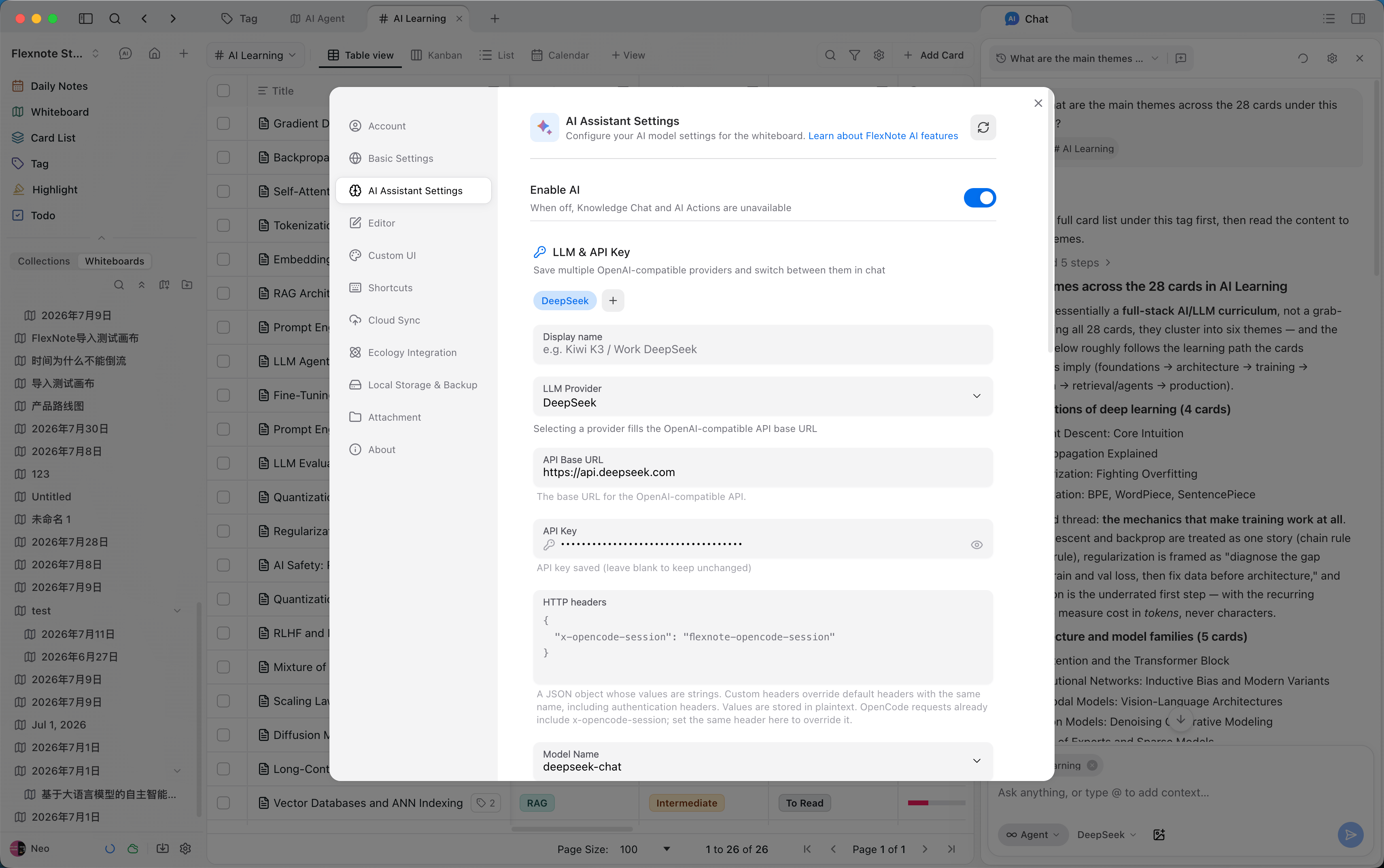
Chat, Agent, and card shortcuts use your own key. Semantic search and text recognition in images use the smart index quota. When the quota is temporarily used up, keyword search still works, and AI does not turn off because of that.
To search body text, index the relevant cards first. A scanned PDF needs text recognition. Video and audio need subtitles. The settings page shows index status and remaining quota. The chat sidebar can also create or rebuild an index for the current context.
Ask and act
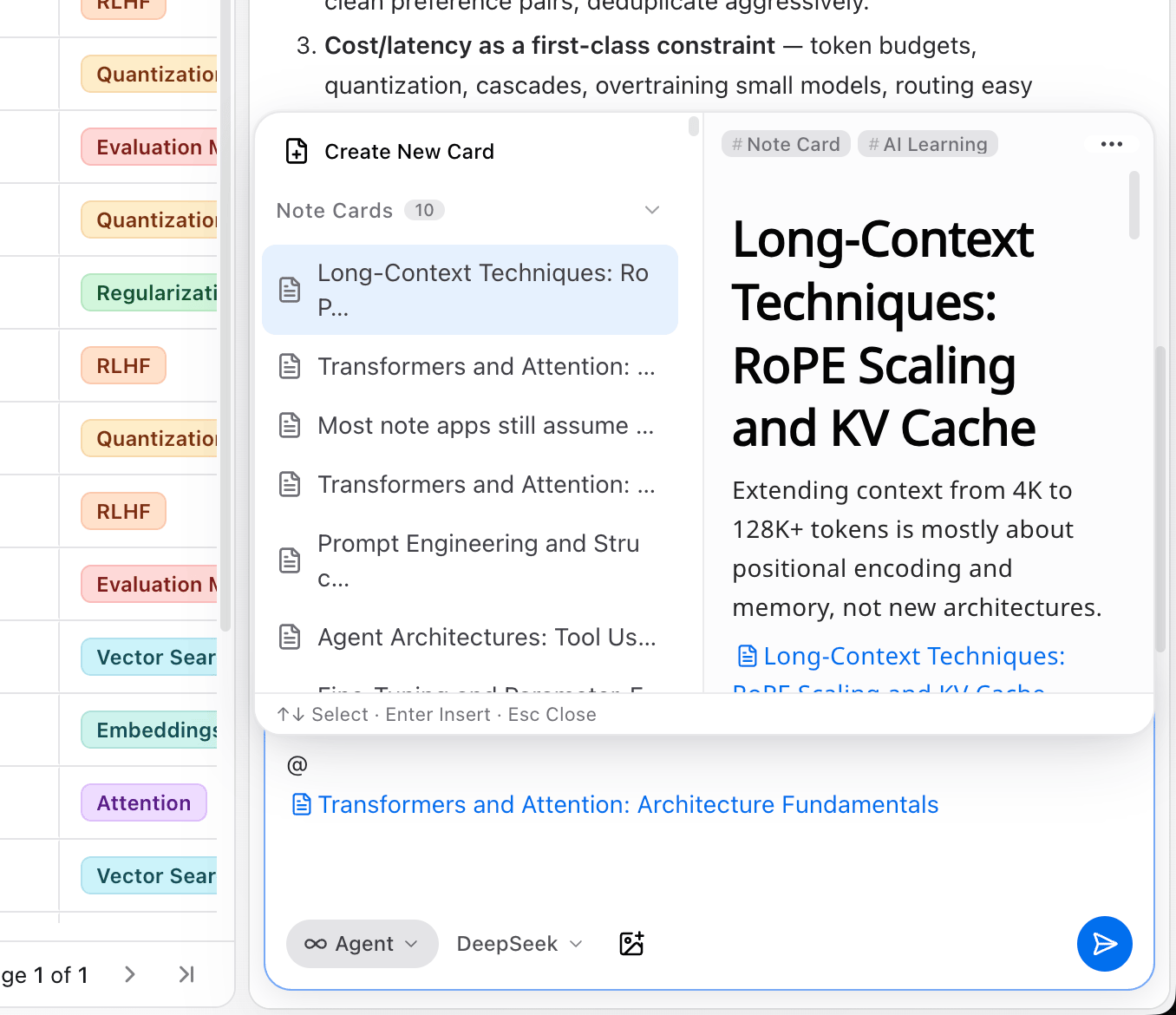
Open AI from the top bar, or from a card or whiteboard, and start a knowledge-base conversation on the right. The current page is the context. Type @ to add another card.
Q&A retrieves, summarizes, and compares. Answers cite sources and can jump to a note paragraph, a PDF page, or a media timestamp. The reasoning and tool steps can be expanded. A useful conclusion can be saved as a card, written into a daily note, or saved as a mind map and placed in the card library.
Agent writes. It can search the library, create or edit cards, daily notes, and todos, and add sticky notes, connectors, and groups on the current whiteboard. Before a write, it pauses and waits for you to confirm the range.
For example:
- Sort recent notes on a topic and check the citations.
- Add tags and todos to a batch of cards.
- Group and connect related cards on the current whiteboard by topic.
Common uses
Ask about a video
After a video is imported and has subtitles, you can ask about the content directly. The answer includes timestamps and the matching frame. Confirm the position before capturing a frame, highlighting, or saving a timestamp card.
Pull out points while reading a paper
After a paper or report is imported, extract the points and generate cards, and read them next to the original. Checking and rewriting still returns to the highlights on the PDF.
Generate a mind map in the conversation
When summarizing a PDF or a set of cards, you can generate a mind map at the same time. After the preview looks right, add it to the card library and keep editing it on another whiteboard or topic.
Fill in tags and properties
When categories are missing or properties are empty, Agent can create tags and properties and fill them in card by card. A batch of cards under one tag can also be added as context for a summary and for relations.
Shortcuts on a card
Open a card's AI shortcuts on the whiteboard to summarize the current card, generate a mind map, translate, or run a custom prompt. A custom action can be named, and frequent ones can be pinned. These actions use the current card as context, for a single task that does not need a long conversation.
A first trial
- Configure DeepSeek or Qwen, and confirm the connection test succeeds.
- Use Q&A to sort recent notes, and check that citations point at the right card or page.
- Use
@to specify a long card, then summarize it or generate a mind map. - Use Agent to group and connect related cards on the current whiteboard by topic. Confirm the write range before it runs.
- Save a useful answer as a card, and confirm it has entered the card library.
Splitting, connecting, and grouping while reading are in Learn and research a topic. AI as an object is in Core elements.