Writing and sharing
Groups and connectors on a topic whiteboard are a structure for yourself. To hand that structure to someone else as reading or a talk, rewrite it as text that unfolds in order, play it scene by scene, or publish it as a link or a file.
The finished piece still references the original concept cards. The body is stored once. The article, the whiteboard, and the presentation show the same content.
From structure to an article
Create a new note as the draft of a plan, paper, or article. In the order you intend to tell it, mention the concept cards on the whiteboard with @, and write the transitions and judgments between those mentions. If a concept card's title is a sentence, the draft's outline can be read without opening every card.
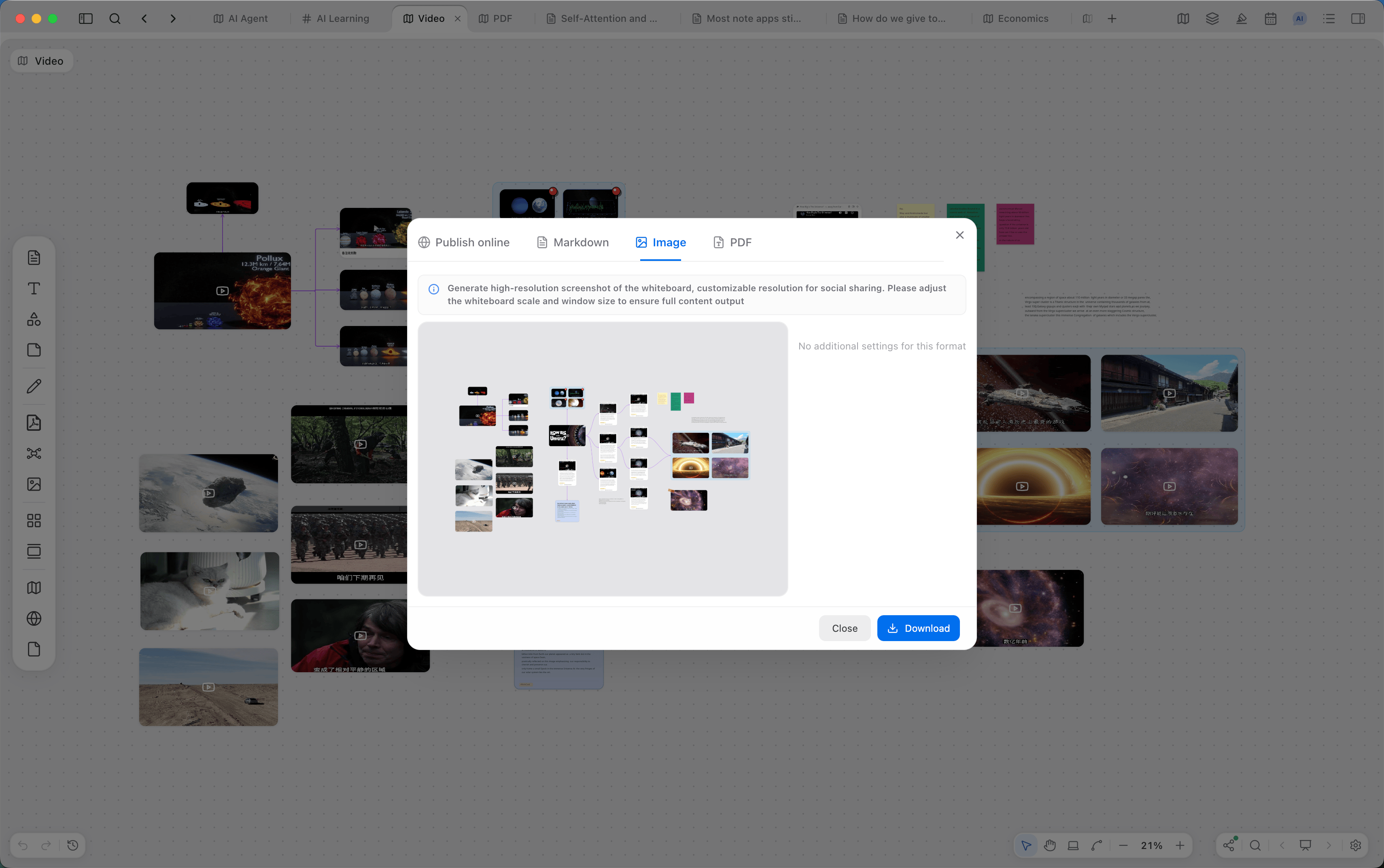
You can also export the whiteboard as Markdown. The export organizes note cards in whiteboard order and works as a first draft to keep editing in a note. The same whiteboard can be exported as an image or a PDF, or published to the web.
| Format | Result |
|---|---|
| Publish online | A read-only web link. Visitors can browse without installing |
| Markdown | Note cards exported in order, ready to rewrite into prose |
| Image | A screenshot of the whiteboard. Adjust zoom and the window so the needed range is in frame |
| A file rendered from the whiteboard's content bounds |
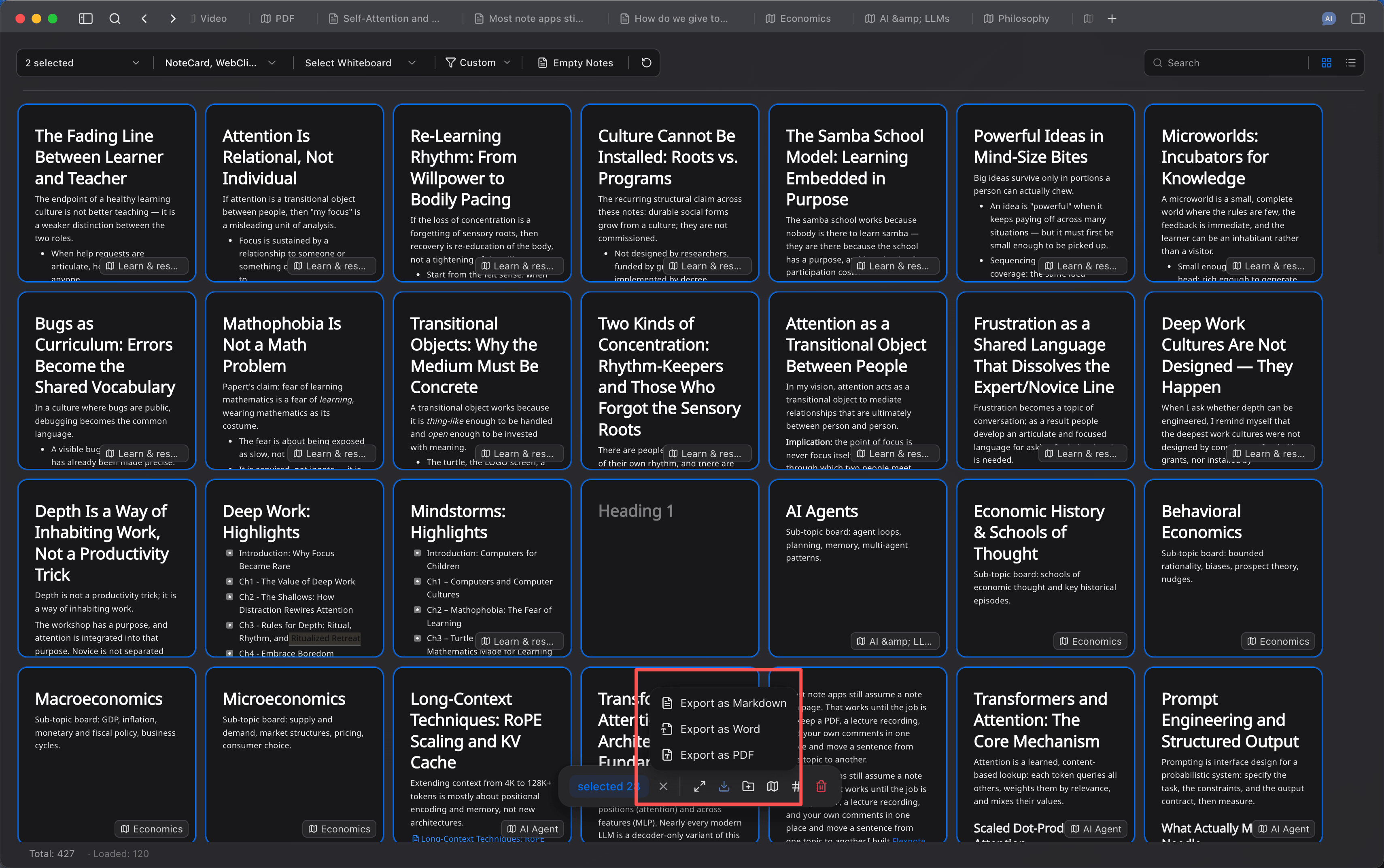
In Card List you can select several cards and export them as Markdown, Word, or PDF. That fits handing over concept cards that are already written.
Explain with a presentation
To walk through a whiteboard in order, use a presentation. Group the relevant cards first, then adjust the canvas view and add scenes. You can also press Cmd/Ctrl + 4 to marquee a region and add it as a scene directly.
Scenes can be renamed, and dragged to change the play order. After you enter the presentation, it switches by scene. Press Esc to leave. A single scene can be exported as a PDF, so the same order can be reviewed outside the app.
Publish for someone else to view
Publishing online turns the current whiteboard into a read-only web page. After the link is created, a visitor can browse without installing Flexnote and without an account. The link can have an access password, and it can be paused. When the content changes, sync once to update the online version. Publishing can include nested whiteboards.
Online publishing is a Lifetime benefit, and uploaded attachments use cloud space. Deleting the share releases that space. A single file over 20MB cannot be uploaded with the publish. Compress or remove it and try again, or continue publishing while skipping those large files.
What gets published is a whiteboard people can browse. Editing together still happens in each person's own Flexnote, on the same set of cards, or by handing over exported Markdown or PDF.
Continue reading
How concept cards are split out of reading is in Learn and research a topic. Whiteboard layers are in Organize knowledge and projects. Using AI to group cards, connect them, or write a summary is in Working with AI.