Import, export, and backup
Material is stored on the device by default. Import brings in notes you already have. Export hands cards or whiteboards to another tool. Local backup keeps a restorable copy on the current device.
The free plan has limits on cards and whiteboards. After the limit is reached, further notes or Canvas files cannot be imported. Plans are on the pricing page (opens in a new tab).
Import
Import Documents opens from the bottom of the left sidebar. The window has four items: document import, Obsidian vault, SiYuan, and backup restore.
Documents
Word (.doc, .docx), Markdown (.md), plain text (.txt), and HTML (.html) are supported. Drop files into the window, or click to choose them. Each file becomes a new note card.
Obsidian vault
Flexnote can read an Obsidian vault on this computer. Import the whole vault, or only some top-level folders. Markdown enters the card library, and the original folders appear in the sidebar collection tree Ob导入. Flexnote reads the source files and creates notes and whiteboards in its own data space. Files in the Obsidian directory stay where they are. For a first migration, try a small folder and check the result.
| Obsidian content | After import |
|---|---|
| Vault folders | Collection folders under Ob导入 |
| Markdown notes | Note cards |
Tags in properties, or #tags in the body | Card tags |
| Wiki links and aliases | Links that open the matching card |
| Image embeds | Uploaded and inserted into the note |
| Callouts, footnotes, task lists, highlights, superscript and subscript, folded content | Rich text the editor recognizes |
.canvas files | Whiteboards |
When properties already contain tags, those tags are used first. Otherwise #tags in the body are read. Body markers that have become tags are cleaned up. [[note name]], wiki links with a path, and [[note name|alias]] are matched among the notes in this batch. If the target is not found, the title is kept so it can be filled in later. Complex theme styles, custom syntax generated by plugins, and properties other than tags are not guaranteed to come across item by item.
Desktop lists vaults already registered on this computer, with the most recently opened vault first. If the target vault is missing, click Choose another folder and locate the vault root. If no .obsidian folder is detected, the Markdown inside can still be imported as an ordinary directory.

The folder list counts notes and Canvas files in the root and in each top-level folder. Select all, or only the folders still in use. Import Canvas boards is on by default. If this pass should move only Markdown, turn it off. Canvas stays in the original vault, and the same folder can be imported again later.

Canvas is converted by node type, and position, size, color, groups, and connectors are kept when possible. Text nodes become whiteboard text. File nodes that point at Markdown reference the imported note cards. Images, video, and audio become media cards. PDFs become PDF cards. Other attachments become file nodes. Web links become web cards. Groups become groups. Edges become connectors. A missing referenced file is marked as a text node with the original filename.
After import, Ob导入 appears in the sidebar. The result counts new notes, updated notes, new canvases, updated canvases, skipped items, and collection entries that were filled in.
Importing the same path again identifies existing content by its relative path inside the vault, and you choose how to handle it:
- Skip existing. Keep the version already edited in Flexnote, and import only new files. This is the default.
- Overwrite existing. Update the original notes with the current Obsidian content. Canvas keeps the original whiteboard entry, clears the inner nodes, and rebuilds them.
- Favorites only. Do not create or edit notes and whiteboards. Only fill missing collection entries back into the sidebar.

After a note is moved or renamed in Obsidian, the new path is treated as a new file. Files with the exact same path in two different vaults should not be imported one after another into the same space. Before a large folder reorganization, create a local backup, then try the import with a small folder.
SiYuan
SiYuan is imported through its local API. Start SiYuan, and copy the API token from its Settings > Authorization. The import window defaults to http://127.0.0.1:6806. After connecting, choose the open notebook. Documents, tags, images, and references enter Flexnote, and the notebook hierarchy is kept in the sidebar under SiYuan Import.
On a later import you can choose:
- Smart update (preserve local edits and skip conflicts).
- Use SiYuan version (overwrite local edits).
- Import new documents only.
A default tag can be attached to notes created or updated in this pass. The extra tag does not replace the original SiYuan tags. If a sync is interrupted, the next import continues from the last position.
Mind maps
Open the mind map entry on a whiteboard to import from XMind or a Markdown outline. XMind supports .xmind files from XMind Zen, XMind 2020+, and XMind 8. Importing an existing mind map again updates it. Markdown uses # headings or - lists for levels. A whole-card link is kept as an @ mention.
Restore from a backup file
Backup restore accepts a Flexnote .zip backup. After import, records in the backup are merged into the current library, and added and updated counts are reported. Create a manual backup of the current library before you confirm. Restoring from the backup list in Settings uses the same merge, described below.
Export
Export depends on the object. Formats for whiteboards, cards, and presentation scenes:
| Object | Format | Result |
|---|---|---|
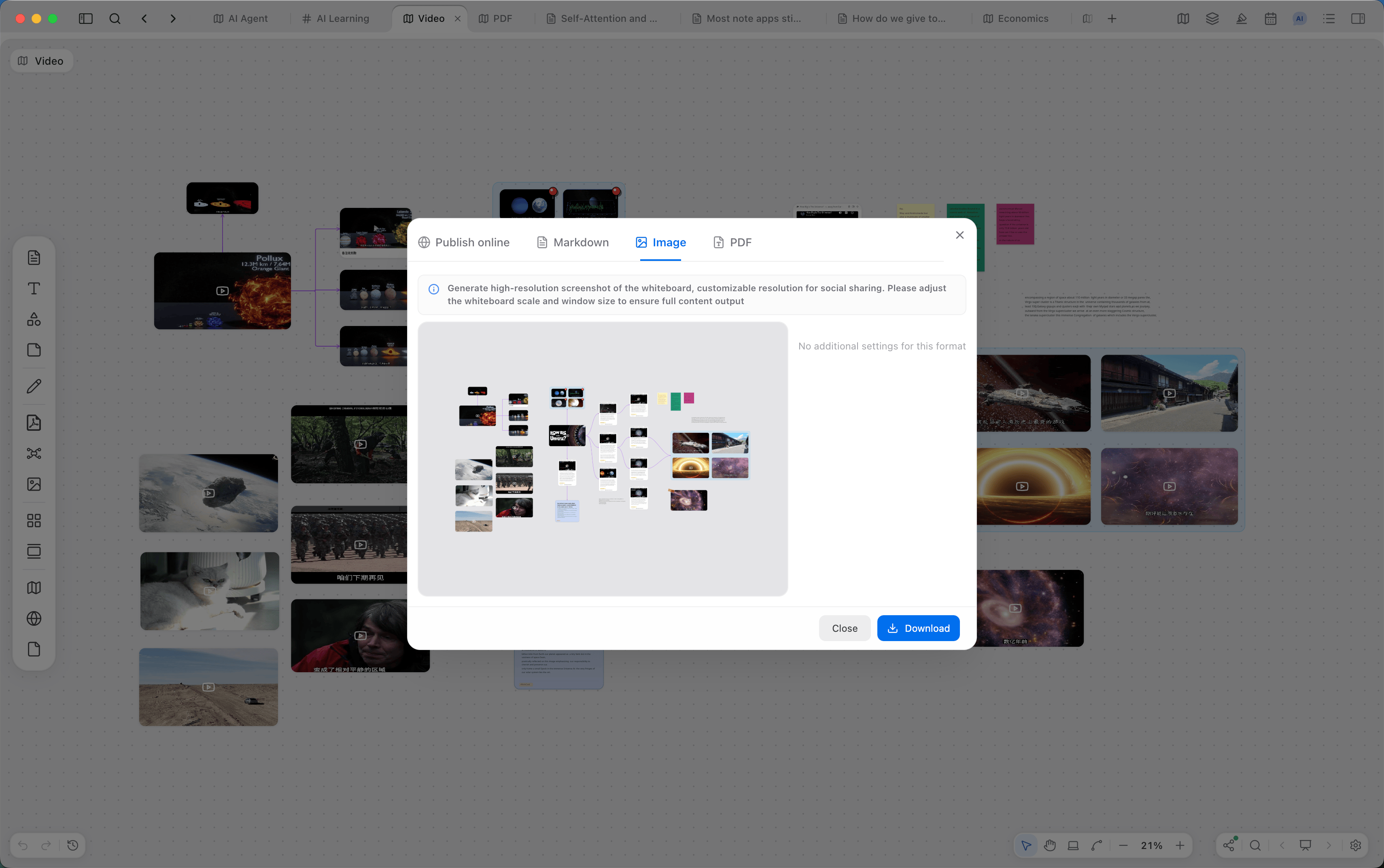
| Whiteboard | Publish online | A read-only web link. Visitors can browse without installing |
| Whiteboard | Markdown | Note cards exported in whiteboard order |
| Whiteboard | Image | A screenshot of the current frame |
| Whiteboard | A file from the whiteboard's content bounds | |
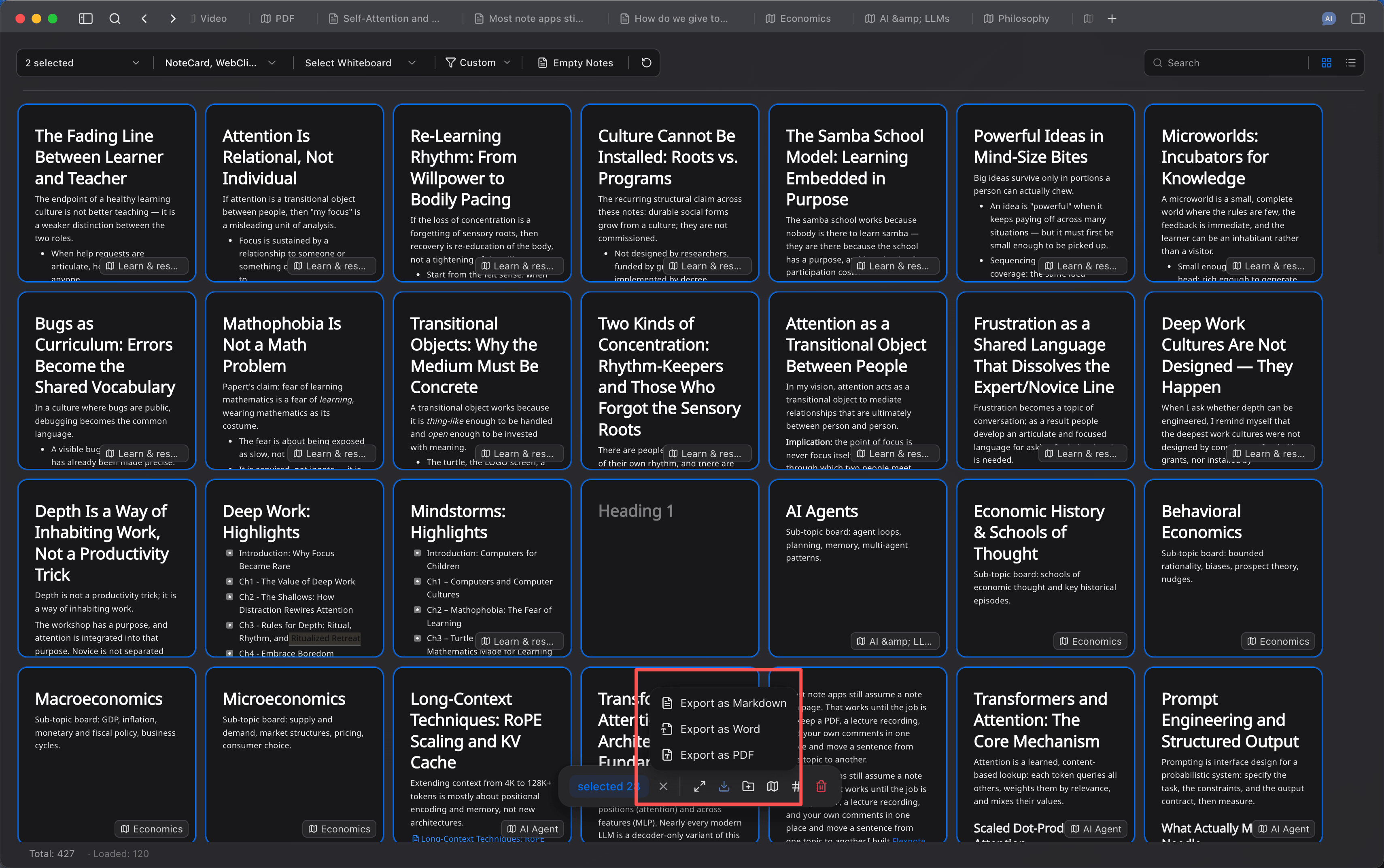
| Card | Markdown, Word, PDF | One card can be exported from its menu. Card List can export a multi-selection in a batch |
| Presentation scene | Review the scene order outside the app |
Export and publish for a whiteboard are in Writing and sharing.
A single card's menu can export Markdown, copy as Markdown, export Word, or export PDF. When several cards or a group are selected on a whiteboard, Markdown and Word can be merged into one export, or exported one card at a time and packed.
Local backup
Open Settings > Local Storage & Backup. Local data such as attachments is in the data storage directory. Backup files are in backup under that directory. You can open the directory, or change the data directory. The new directory cannot be inside the current data directory.
A backup is created automatically when the app quits and when cloud sync runs. You can also click Create Manual Backup, or press Cmd/Ctrl + Shift + B. That shortcut can be changed in Settings > Shortcuts.
Automatic cleanup keeps files by these rules:
- The latest 10 backups are always kept, unless the backup space limit is exceeded.
- Within the latest 24 hours, one backup is kept per hour.
- Backups older than 24 hours and younger than 30 days: one per day.
- Backups older than 30 days and younger than 90 days: one per week.
- Backups older than 90 days: one per month.
Dated filenames look like FlexNote-Backup- followed by a time. Cloud sync additionally uploads only the fixed file FlexNote-Backup-Cloud-Sync.zip. Other dated backups stay on the current device. Upload and download across devices are in Third-party cloud sync.
Choose Restore from this backup in the backup list. The backup is merged into the current library, and the counts of added and updated items are reported. Refresh the app after the restore finishes. A backup in the list can also be deleted.
AI vector indexes and full-text indexes are not included in a backup. After a restore or a move to another device, rebuild the index on that device. Local paths and window state in the interface are not overwritten as a whole table.
The bottom of the same page lists deleted workspaces. Their data remains on the device. A workspace can be restored, or its local database can be deleted permanently. A deleted workspace is not included in a new full backup.
Continue reading
Moving a library among devices is in Third-party cloud sync. Turning a whiteboard into an article or a published link is in Writing and sharing.