Capture ideas and daily notes
A whiteboard works best once you already have some material and a first sense of it. When the topic is clear, start with one note card, split it into more cards as your understanding grows, and arrange the structure on a whiteboard. When ideas are still loose and have no clear topic, write them in a daily note, or capture one idea as its own card. Later, put the daily notes on a whiteboard, turn passages into cards, or mention existing cards while writing.
When to use a whiteboard
A whiteboard turns information you already have into a structure you can see. When there is still little material and the boundaries of the ideas are unclear, keep the content in cards or daily notes. Once one card starts to hold distinct ideas, and the relationships among them can be recognized, split, arrange, and connect them on a whiteboard.
If you already have notes, web pages, or literature, put them on a whiteboard and take them apart. For a brand-new topic, start with a single card.
When the topic is already clear
Create a whiteboard for the topic, and create one note card on it as the start of the study or research. If the topic is a book, keep writing the points worth keeping into that card. If the topic is a field, keep writing what you newly learn into the same card.
After the content grows long, split it into smaller cards by idea, then arrange, group, and connect them on the whiteboard. When the structure in front of you makes the topic clear, that is the current organization.
When new material related to the topic shows up later:
- If it belongs directly to a card already on the whiteboard, write it into that card.
- If it has no clear relationship to the existing cards, create a new note card and keep accumulating. After it grows long and the idea boundaries are clear, split it and update the whiteboard.
When reviewing, search with Cmd/Ctrl + O and open the card in a tab. Card info and Whiteboard location in the right sidebar show which whiteboards contain the card, where it sits on the canvas, and which cards are around it.
When ideas are still loose
If a few sentences or a screenshot do not belong to any topic yet, you do not have to decide which whiteboard they go on.
Daily Notes records the day's ideas by date. Open Daily Notes from the left sidebar, or press Option/Alt + Shift + 1. Daily notes are arranged on a timeline, and an empty date can be expanded and filled in. The right side can show the calendar, todos, attachments, highlights, and the outline, and can jump to a date.
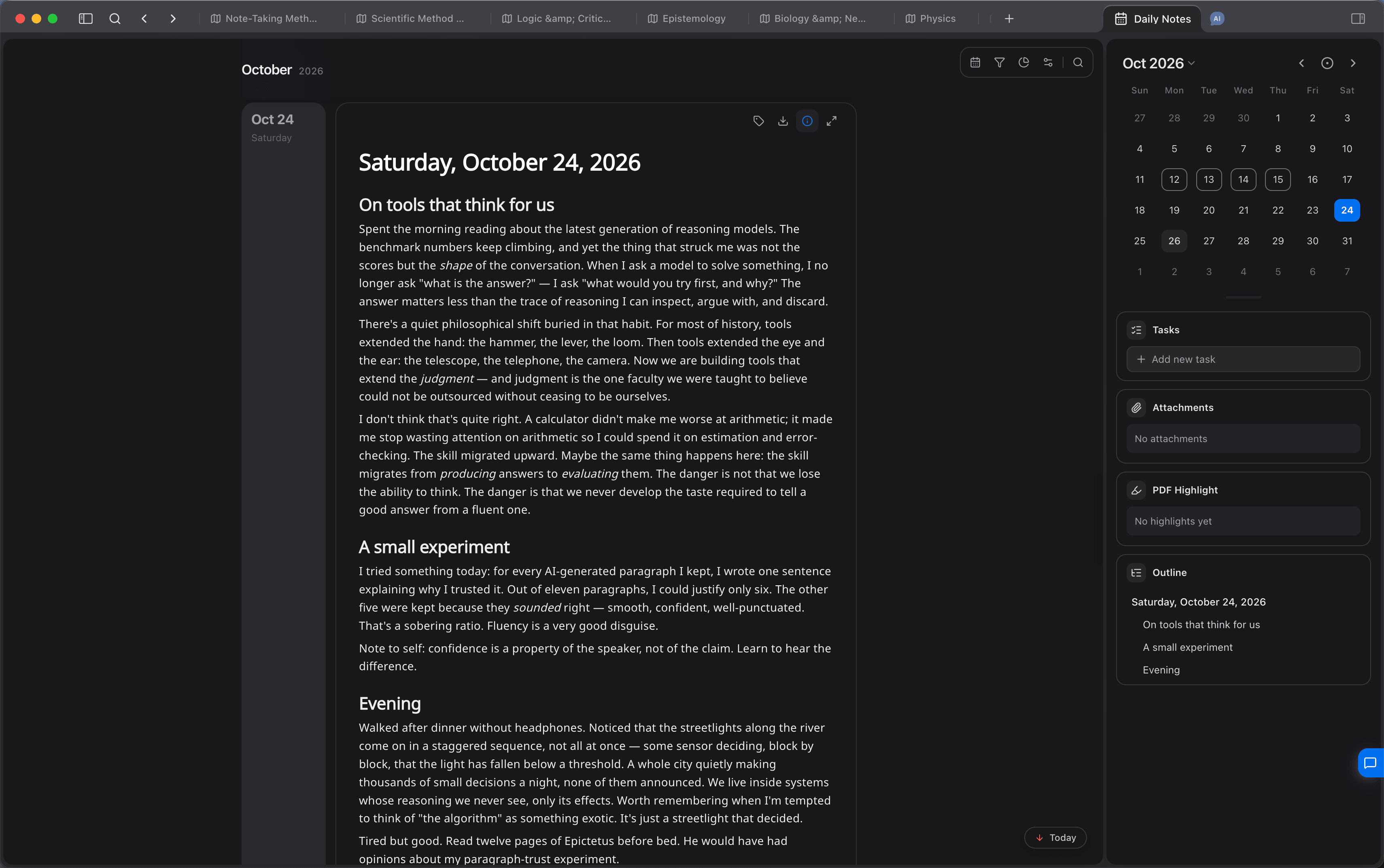
Quick capture stores one idea as its own note card. Press Cmd/Ctrl + Option/Alt + N to open a separate window. The first line is the title. Cmd/Ctrl + N also creates a card directly. These cards enter the card library, and can later be dragged onto the right whiteboard.
Reviewing daily notes
After daily notes have accumulated, review them in three ways. The first two fit most reviews. Use the third only when you already know which card to connect.
Place a span of daily notes on a whiteboard
To review a week, a month, or longer, right-click empty canvas, choose Calendar, then choose a date range. The choices include today, this week, last week, this month, and last month, or you can select the start and end yourself. After you confirm, each day's note in that range is placed on the whiteboard. The layout can be by date or as a grid. For a grid, set the number of columns. You can also open Daily Notes in the right sidebar and read a day's body next to the canvas.
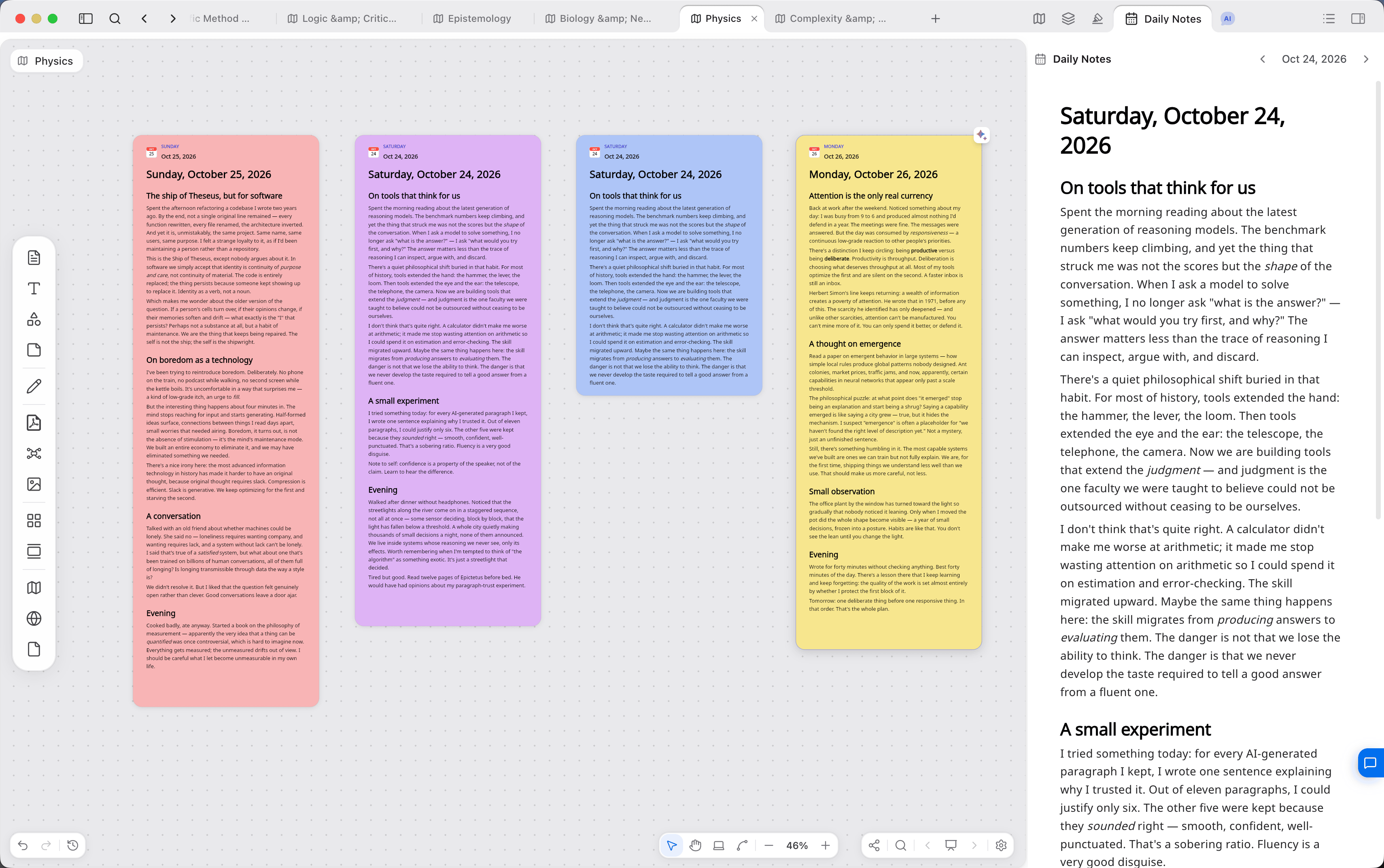
Turn a passage from a daily note into a card
If a stretch of daily notes keeps returning to the same topic, create a whiteboard for that topic. Open Daily Notes in the right sidebar, and find the relevant dates. Select the passage to keep, and choose Turn into new card in the block menu. After the new card enters the card library, drag it onto this whiteboard and place it with the cards already there.
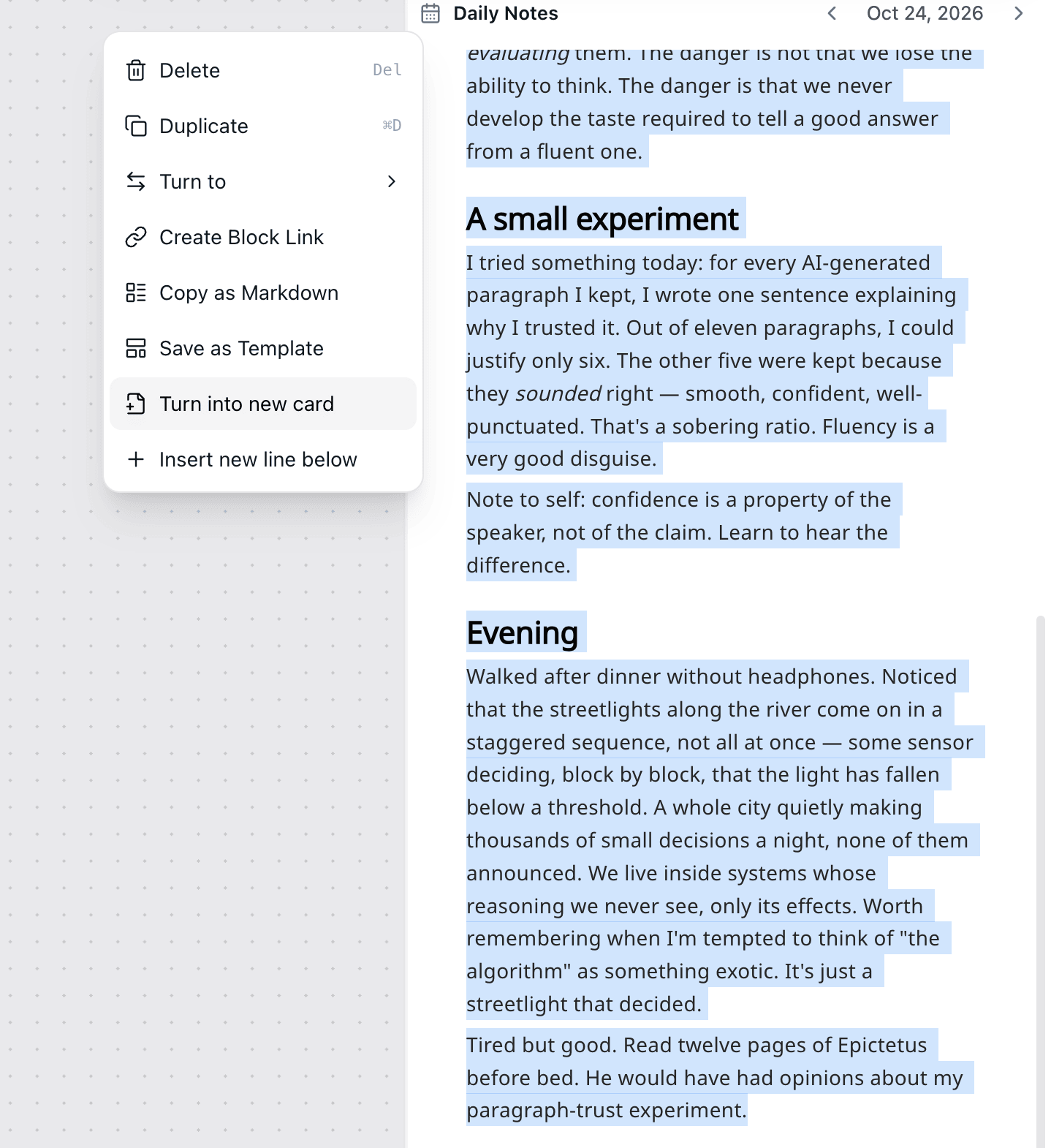
To place an entire day's note on a whiteboard, press Cmd/Ctrl + M in the daily note and add it to the chosen whiteboard.
Mention an existing card in a daily note
While writing, type @ to mention an existing card, date, or whiteboard. Choosing one shows a card preview. Later, open the mentioned card and the mentions from the daily note appear in related cards and card info, with a way back to that date.

A mention is for a connection you have already decided to keep. When reviewing daily notes, prefer the first two ways.
Continue reading
Layers after the topics multiply are in Organize knowledge and projects. Cards, whiteboards, and mentions are in Core elements. Entries for daily notes, search, and whiteboard location are in Interface.